 JPY
JPY USD
USD EUR
EUR GBP
GBP CAD
CAD AUD
AUD HKD
HKD KRW
KRW SGD
SGD NZD
NZD THB
THB TWD
TWD 繁體中文
繁體中文 日本語
日本語 한국어
한국어 English


By Android TV Box | 28 April 2026 | 0 Comments
How to Download Third-Party Apps on DIGIBox D6 Max?
One of the key strengths of the DIGIBox D6 Max is its flexibility in allowing users to install third-party applications. Unlike many traditional streaming devices that restrict users to a closed app ecosystem, DIGIBox D6 Max gives you more freedom to customize your entertainment experience.
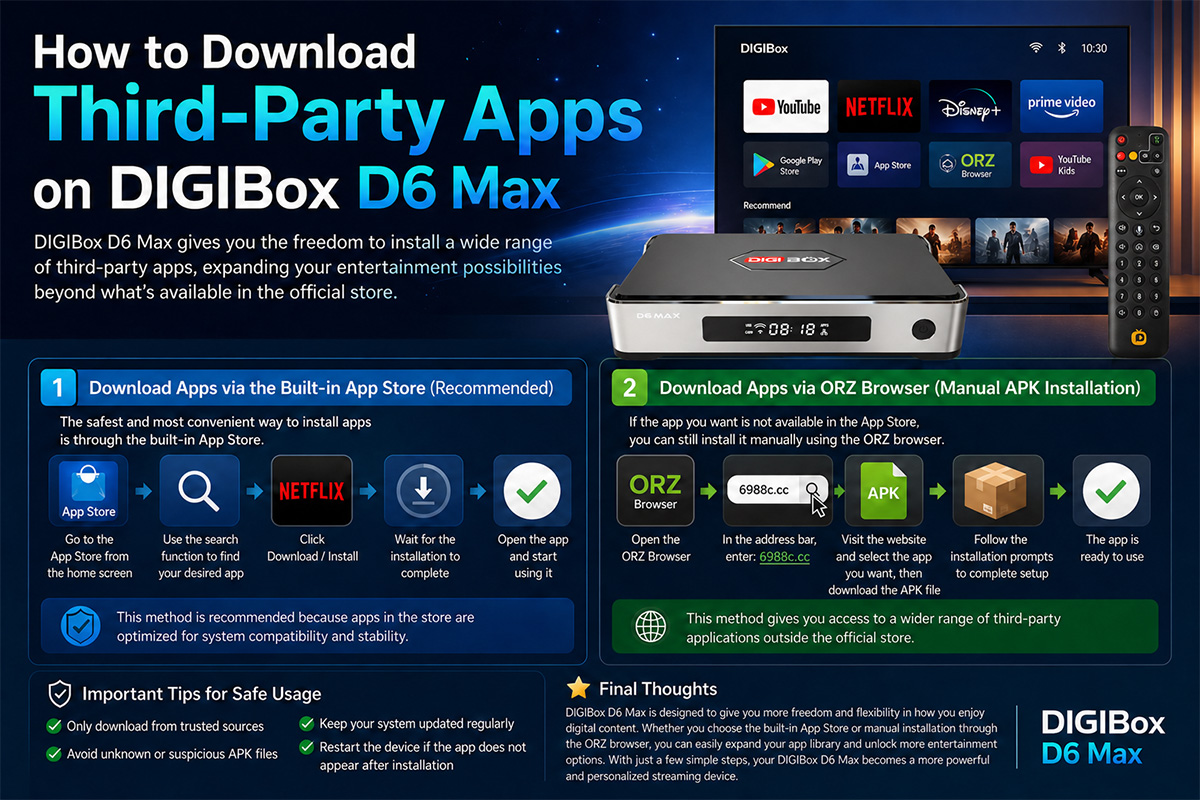
In this guide, we will introduce two simple methods to download and install third-party apps on your device.
1. Download Apps via the Built-in App Store (Recommended)
The safest and most convenient way to install apps is through the built-in App Store on your DIGIBox D6 Max.
Steps:
Turn on your DIGIBox D6 Max
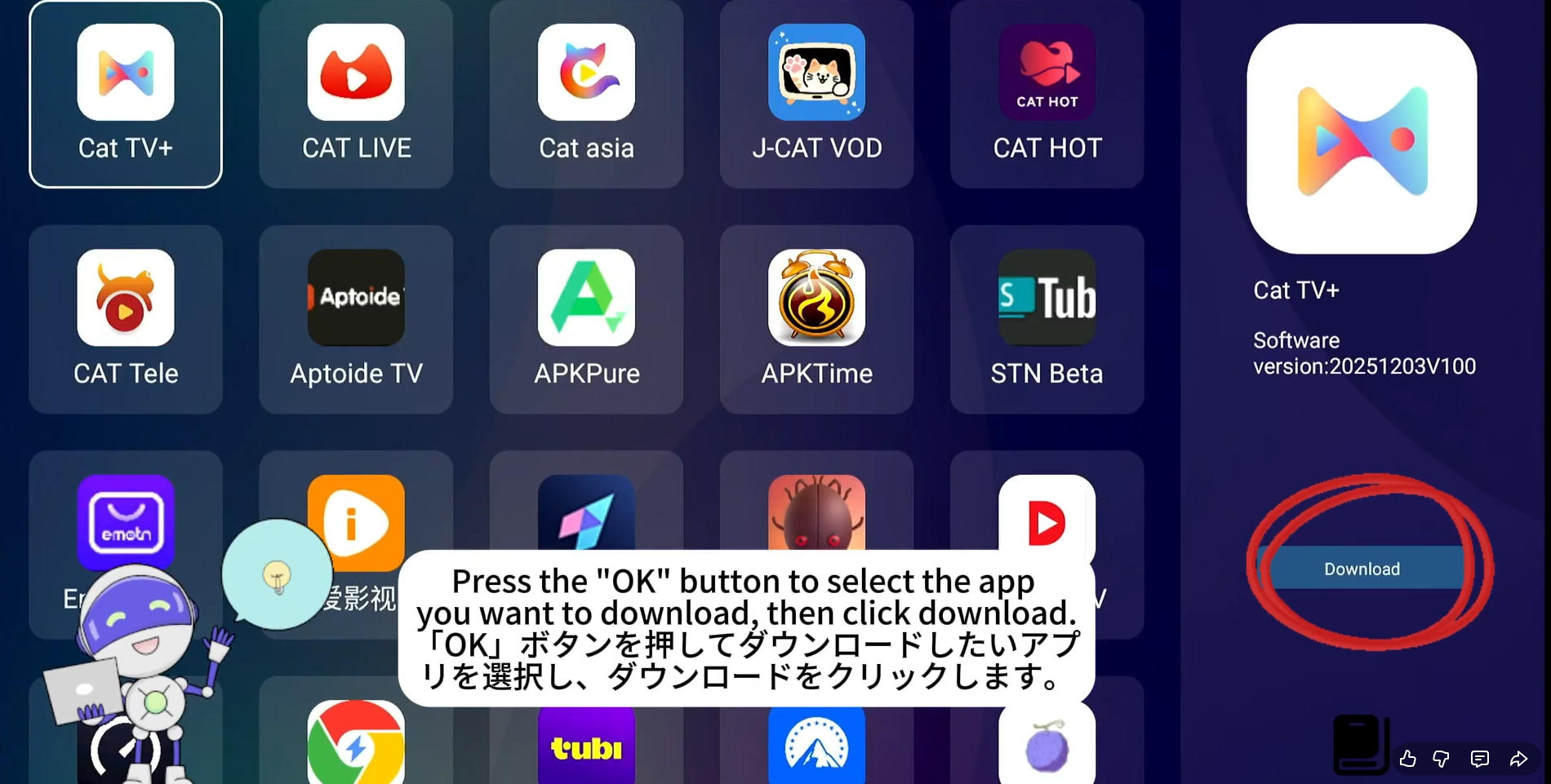
Go to the App Store from the home screen
Use the search function to find your desired app
Click Download / Install
Wait for the installation to complete
Open the app and start using it
This method is recommended because apps in the store are optimized for system compatibility and stability.
2. Download Apps via ORZ Browser (Manual APK Installation)
If the app you want is not available in the App Store, you can still install it manually using the ORZ browser.
Steps:
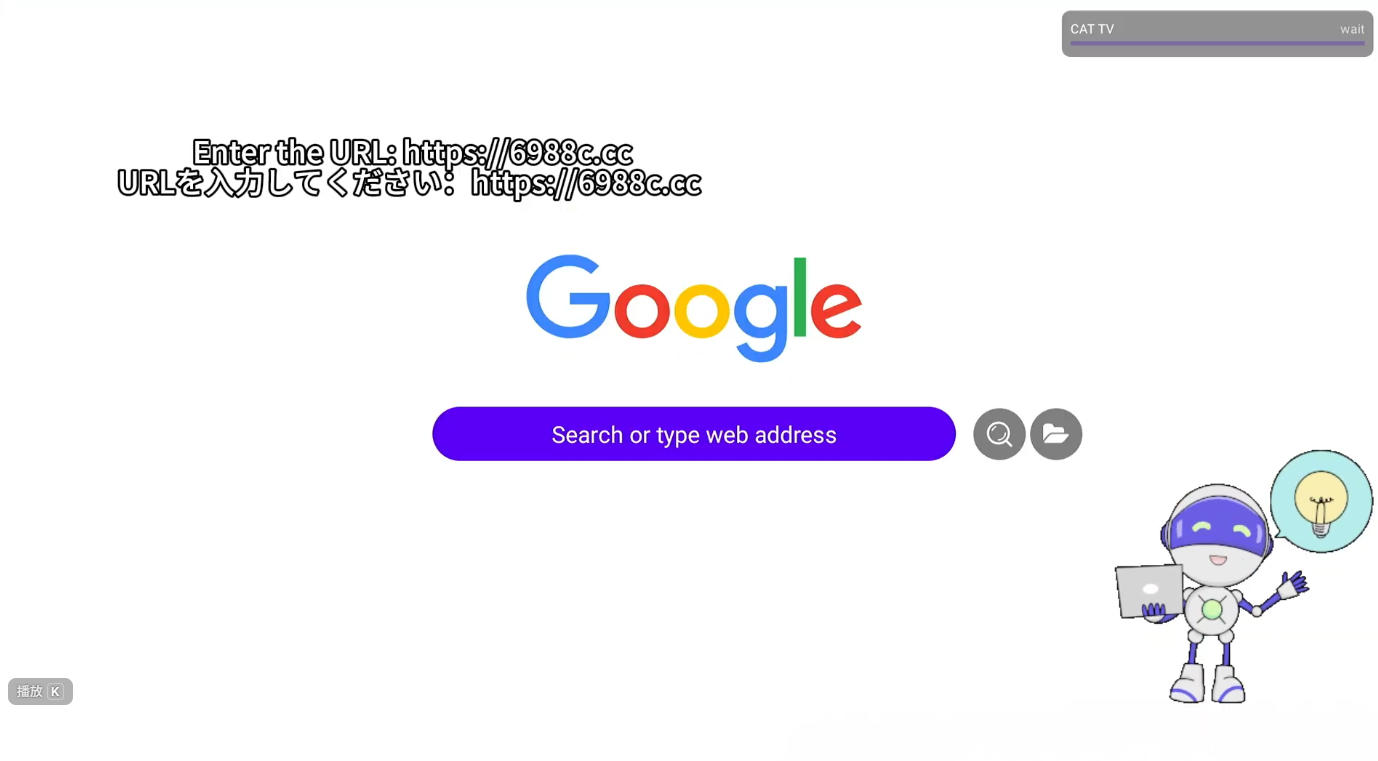
Open the ORZ Browser on your DIGIBox D6 Max
In the address bar, enter:
6988c.cc
Visit the website and select the app you want
Download the APK file
Follow the installation prompts to complete setup
This method gives you access to a wider range of third-party applications outside the official store.
Important Tips for Safe Usage
To ensure the best experience when installing third-party apps:
Only download from trusted sources
Avoid unknown or suspicious APK files
Keep your system updated regularly
Restart the device if the app does not appear after installation
Final Thoughts
The DIGIBox D6 Max is designed to give users more freedom and flexibility in how they enjoy digital content. Whether you choose the built-in App Store or manual installation through the ORZ browser, you can easily expand your app library and unlock more entertainment options.
With just a few simple steps, your DIGIBox D6 Max becomes a more powerful and personalized streaming device.
In this guide, we will introduce two simple methods to download and install third-party apps on your device.
1. Download Apps via the Built-in App Store (Recommended)
The safest and most convenient way to install apps is through the built-in App Store on your DIGIBox D6 Max.
Steps:
Turn on your DIGIBox D6 Max
Go to the App Store from the home screen
Use the search function to find your desired app
Click Download / Install
Wait for the installation to complete
Open the app and start using it
This method is recommended because apps in the store are optimized for system compatibility and stability.
2. Download Apps via ORZ Browser (Manual APK Installation)
If the app you want is not available in the App Store, you can still install it manually using the ORZ browser.
Steps:
Open the ORZ Browser on your DIGIBox D6 Max
In the address bar, enter:
6988c.cc
Visit the website and select the app you want
Download the APK file
Follow the installation prompts to complete setup
This method gives you access to a wider range of third-party applications outside the official store.
Important Tips for Safe Usage
To ensure the best experience when installing third-party apps:
Only download from trusted sources
Avoid unknown or suspicious APK files
Keep your system updated regularly
Restart the device if the app does not appear after installation
Final Thoughts
The DIGIBox D6 Max is designed to give users more freedom and flexibility in how they enjoy digital content. Whether you choose the built-in App Store or manual installation through the ORZ browser, you can easily expand your app library and unlock more entertainment options.
With just a few simple steps, your DIGIBox D6 Max becomes a more powerful and personalized streaming device.


