 JPY
JPY USD
USD EUR
EUR GBP
GBP CAD
CAD AUD
AUD HKD
HKD KRW
KRW SGD
SGD NZD
NZD THB
THB TWD
TWD 繁體中文
繁體中文 日本語
日本語 한국어
한국어 English


By Android TV Box | 11 May 2026 | 0 Comments
How to Install Third-Party Apps on the GetMax G12 TV Box
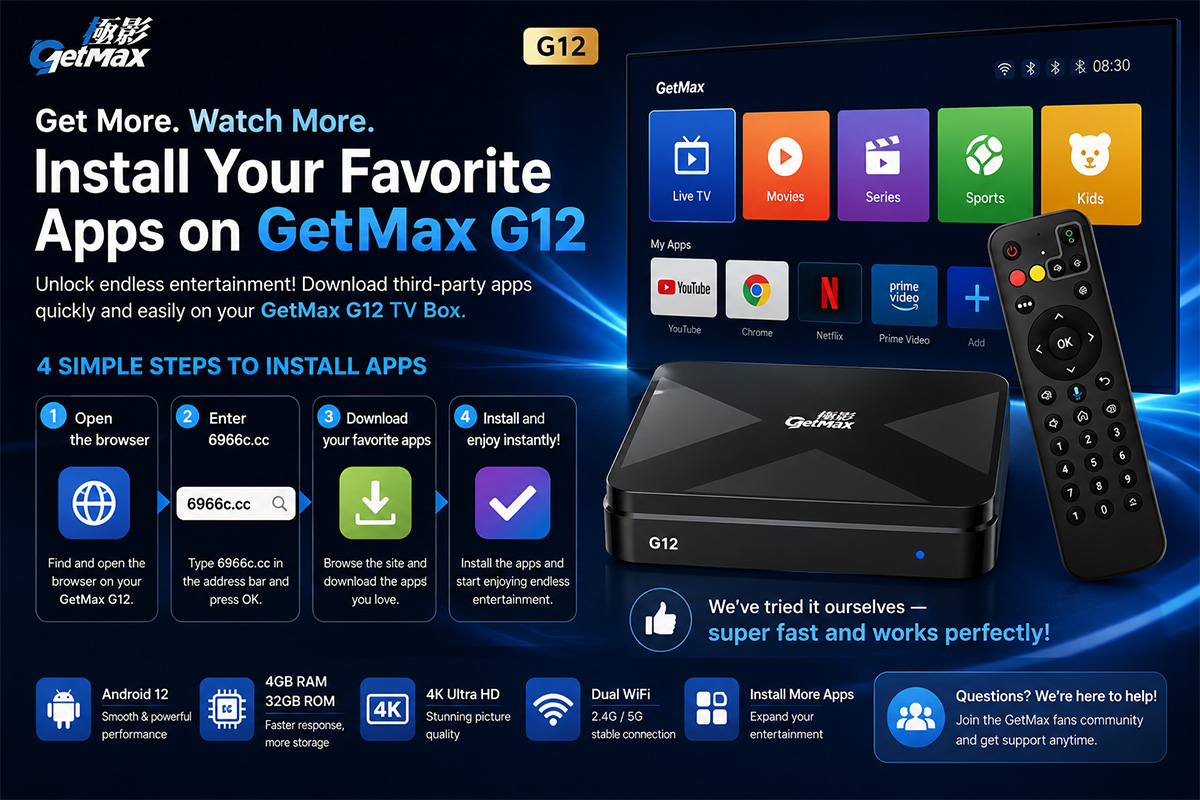
The GetMax G12 TV Box is more than just a regular streaming device — it's a powerful entertainment hub that gives users the freedom to customize their viewing experience. Besides the built-in apps, you can also install third-party applications to unlock even more live TV, movies, sports, and international content.
In this guide, we'll show you the easiest way to download and install apps on your GetMax G12 TV Box in just a few minutes.
Why Install Third-Party Apps?
One of the biggest advantages of Android TV boxes is flexibility. By installing third-party apps, you can:
Watch more live TV channels
Access additional movie and VOD libraries
Enjoy international entertainment
Customize your streaming experience
Install apps not available in the default app store
The GetMax G12 makes this process quick and beginner-friendly.
Step-by-Step Guide to Install Apps on GetMax G12
Step 1: Open the Browser
Turn on your GetMax G12 TV Box and go to the browser app from the home screen.
Most users use the built-in browser for the fastest setup experience.
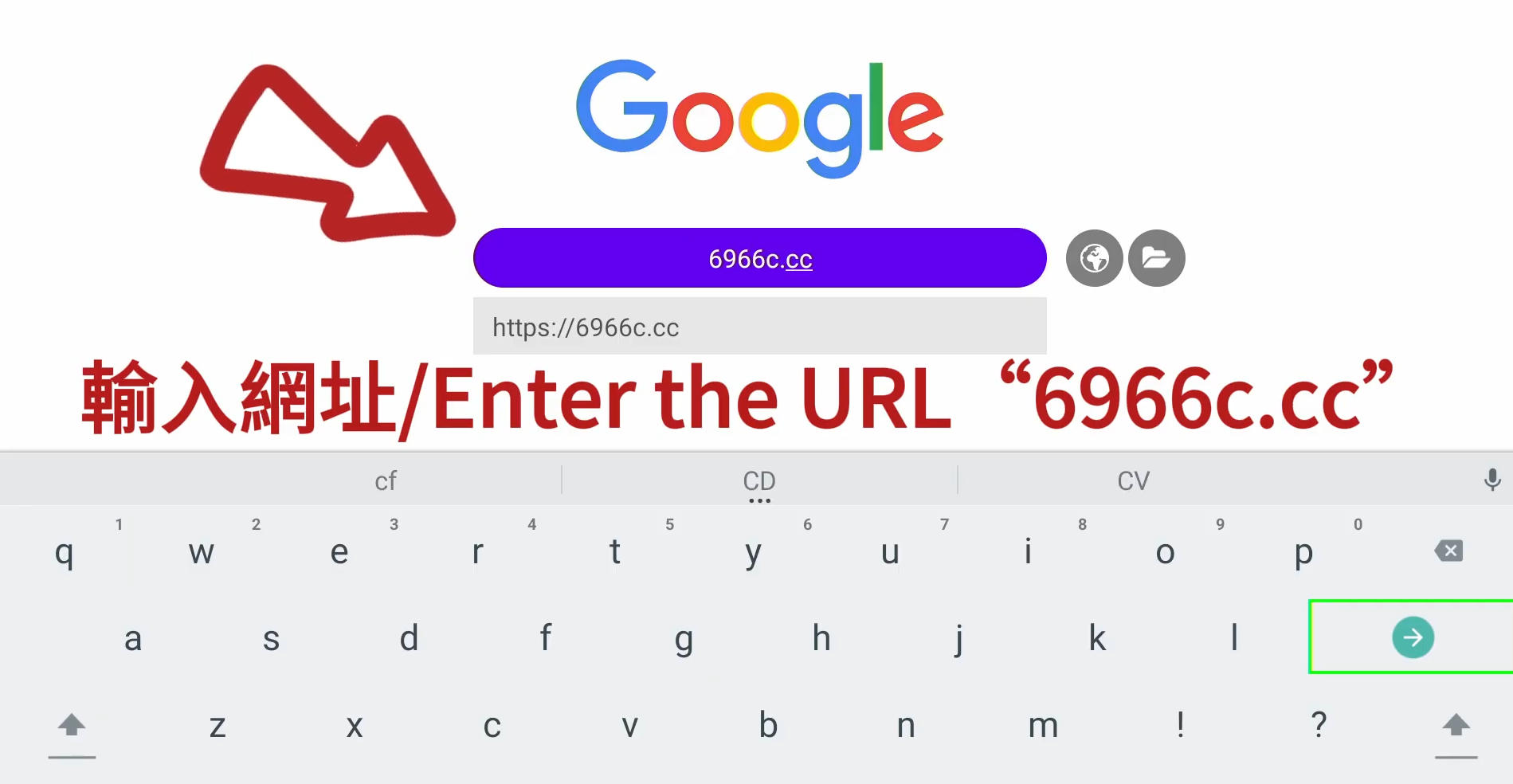
Step 2: Enter the Download Website
In the browser address bar, type:
6966c.cc
This website provides access to compatible applications for the GetMax G12 TV Box.
After entering the address, press OK on your remote control to continue.
Step 3: Download Your Favorite Apps
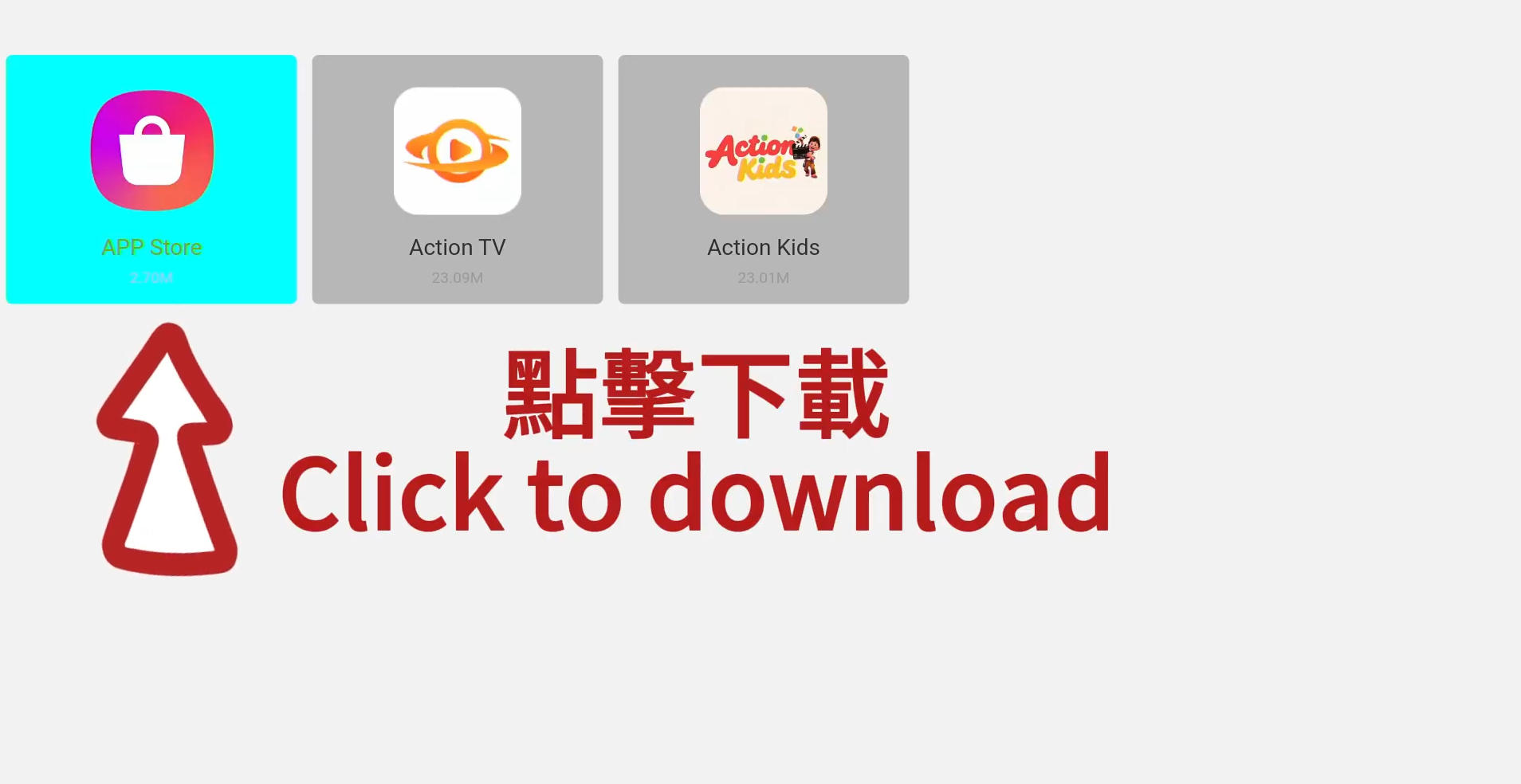
Once the website opens, you’ll see a selection of apps available for download.
Choose the apps you want, then click the download button. Depending on your internet speed, the download usually finishes very quickly.
Popular app categories include:
Live TV apps
Movies & TV shows
Sports streaming
International channels
Media players
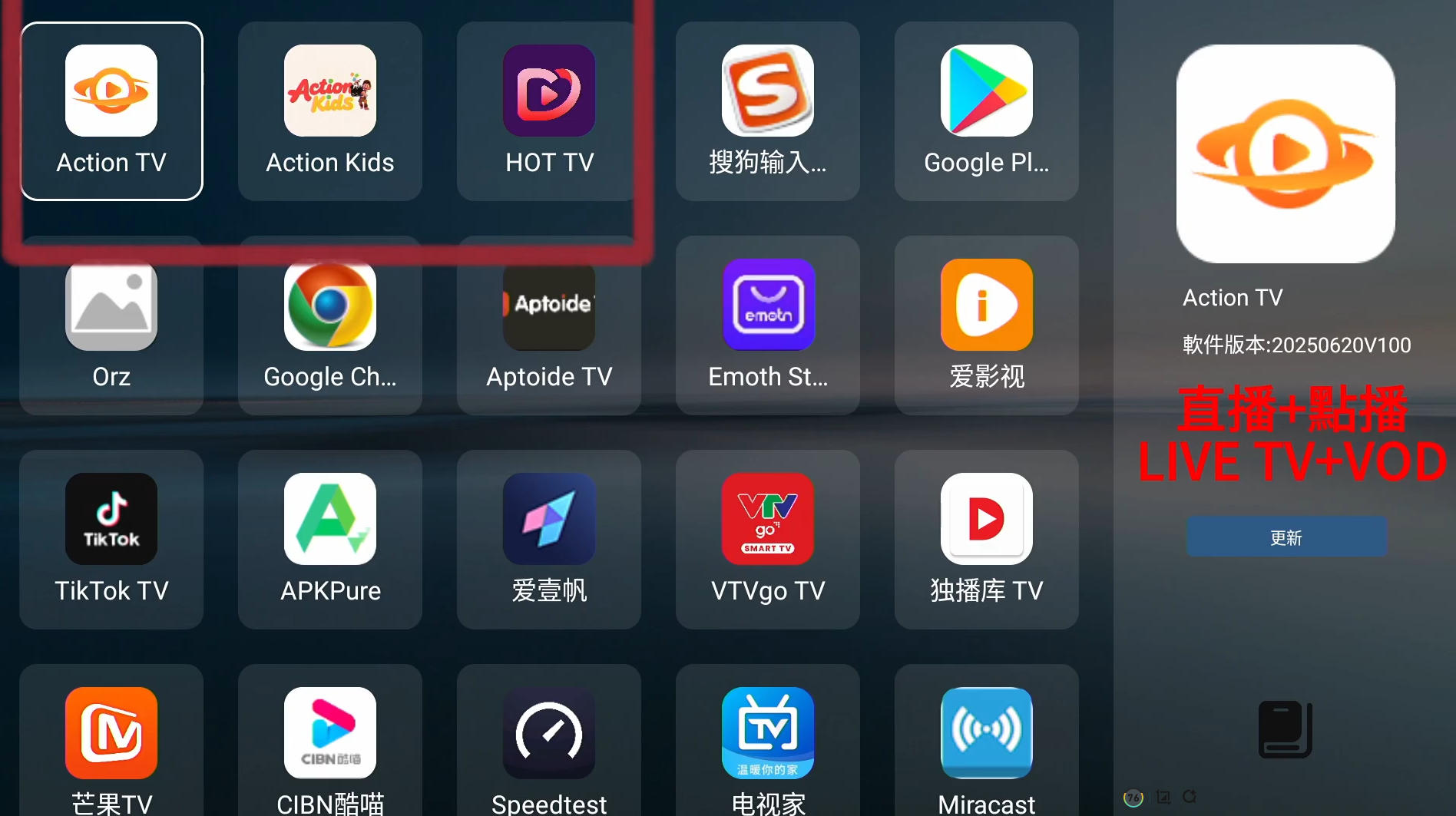
Step 4: Install and Start Watching
After the download is complete:
Open the downloaded file
Click "Install"
Wait a few seconds
Launch the app and enjoy
That's it — your new app is ready to use!
Tips for a Smooth Installation
To get the best experience from your GetMax G12 TV Box, keep these tips in mind:
Use a Stable Internet Connection
A fast Wi-Fi or Ethernet connection helps downloads complete smoothly.
Enable Unknown Sources
If prompted during installation, allow installations from unknown sources in the Android settings.
Keep Your Device Updated
System updates can improve compatibility and performance for third-party apps.
Restart Occasionally
Restarting the TV box after installing multiple apps can help maintain smooth performance.
Why Users Love the GetMax G12
Many users enjoy the GetMax G12 TV Box because it combines powerful hardware with easy customization. The device supports smooth streaming, quick app installation, and a user-friendly Android interface.
Whether you love movies, sports, international channels, or on-demand entertainment, installing third-party apps helps unlock the full potential of the device.
Final Thoughts
Installing apps on the GetMax G12 TV Box is simple, fast, and beginner-friendly. By using the browser and visiting 6966c.cc, you can quickly expand your entertainment options and personalize your TV experience.
If you encounter any issues during installation, don't worry — the GetMax community is always ready to help with tips, recommendations, and troubleshooting advice.
Enjoy streaming and discover everything your GetMax G12 can do!
In this guide, we'll show you the easiest way to download and install apps on your GetMax G12 TV Box in just a few minutes.
Why Install Third-Party Apps?
One of the biggest advantages of Android TV boxes is flexibility. By installing third-party apps, you can:
Watch more live TV channels
Access additional movie and VOD libraries
Enjoy international entertainment
Customize your streaming experience
Install apps not available in the default app store
The GetMax G12 makes this process quick and beginner-friendly.
Step-by-Step Guide to Install Apps on GetMax G12
Step 1: Open the Browser
Turn on your GetMax G12 TV Box and go to the browser app from the home screen.
Most users use the built-in browser for the fastest setup experience.
Step 2: Enter the Download Website
In the browser address bar, type:
6966c.cc
This website provides access to compatible applications for the GetMax G12 TV Box.
After entering the address, press OK on your remote control to continue.
Step 3: Download Your Favorite Apps
Once the website opens, you’ll see a selection of apps available for download.
Choose the apps you want, then click the download button. Depending on your internet speed, the download usually finishes very quickly.
Popular app categories include:
Live TV apps
Movies & TV shows
Sports streaming
International channels
Media players
Step 4: Install and Start Watching
After the download is complete:
Open the downloaded file
Click "Install"
Wait a few seconds
Launch the app and enjoy
That's it — your new app is ready to use!
Tips for a Smooth Installation
To get the best experience from your GetMax G12 TV Box, keep these tips in mind:
Use a Stable Internet Connection
A fast Wi-Fi or Ethernet connection helps downloads complete smoothly.
Enable Unknown Sources
If prompted during installation, allow installations from unknown sources in the Android settings.
Keep Your Device Updated
System updates can improve compatibility and performance for third-party apps.
Restart Occasionally
Restarting the TV box after installing multiple apps can help maintain smooth performance.
Why Users Love the GetMax G12
Many users enjoy the GetMax G12 TV Box because it combines powerful hardware with easy customization. The device supports smooth streaming, quick app installation, and a user-friendly Android interface.
Whether you love movies, sports, international channels, or on-demand entertainment, installing third-party apps helps unlock the full potential of the device.
Final Thoughts
Installing apps on the GetMax G12 TV Box is simple, fast, and beginner-friendly. By using the browser and visiting 6966c.cc, you can quickly expand your entertainment options and personalize your TV experience.
If you encounter any issues during installation, don't worry — the GetMax community is always ready to help with tips, recommendations, and troubleshooting advice.
Enjoy streaming and discover everything your GetMax G12 can do!


