 USD
USD EUR
EUR GBP
GBP CAD
CAD AUD
AUD HKD
HKD JPY
JPY KRW
KRW SGD
SGD NZD
NZD THB
THB TWD
TWD 繁體中文
繁體中文 日本語
日本語 한국어
한국어 English


By Android TV Box | 17 July 2026 | 0 Comments
SviCloud 10S Review: Unboxing, Setup Guide, Features & Performance
The Android TV box market continues to grow, and the SviCloud 10S remains one of the most talked-about streaming devices for users who want access to international live TV and on-demand content.
Although the SviCloud 10S has been available for some time, many new users still have questions about installation, remote control functions, playback features, and daily usage. This guide summarizes everything covered in the video, from unboxing to performance testing.
What's Inside the Box?
The SviCloud 10S package includes everything needed to get started:
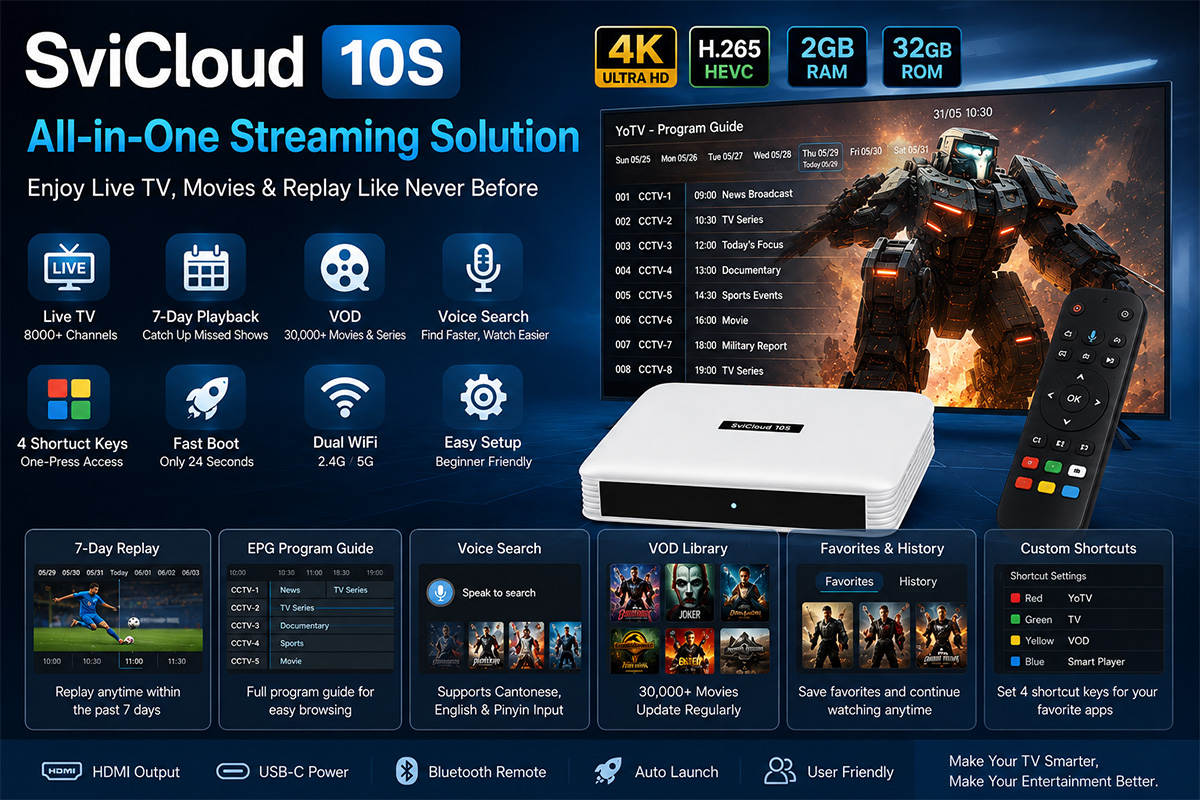
SviCloud 10S TV Box
Bluetooth Voice Remote Control
HDMI Cable
USB-C Power Adapter
User Manual
The TV box adopts a clean white design with a modern appearance. On the back, you'll find the HDMI output and USB-C power input. The overall hardware design is simple and user-friendly.
The included Bluetooth remote supports voice search and features four programmable shortcut buttons, making daily operation much more convenient.
First-Time Setup
Before connecting the TV box, install batteries into the remote control first. Since the remote pairs through Bluetooth during the initial setup, having batteries installed beforehand ensures a smooth pairing process.
After connecting the HDMI cable and power supply:
Power on the device.
Hold the Volume + and Volume - buttons simultaneously for several seconds.
Wait for the Bluetooth pairing prompt to appear.
Once paired, continue through the setup wizard.
The initial setup includes:
Selecting language
Choosing region
Configuring network settings
Completing basic system initialization
If using Wi-Fi, simply:
Open Network Settings
Select your home Wi-Fi
Enter the password
Wait for the connection
Once connected successfully, the system clock will synchronize automatically. If the displayed time is incorrect, it's usually an indication that the network connection hasn't been established properly.
Installing the Required Applications
Using the built-in browser, users can visit the provided installation website and download the necessary applications.
The video demonstrates installing three primary apps:
YoTV
Smart Player
Additional system application
Installation is straightforward:
Download
Install
Return to the home screen
No additional software is generally required for normal daily use.
Customizing the Home Screen
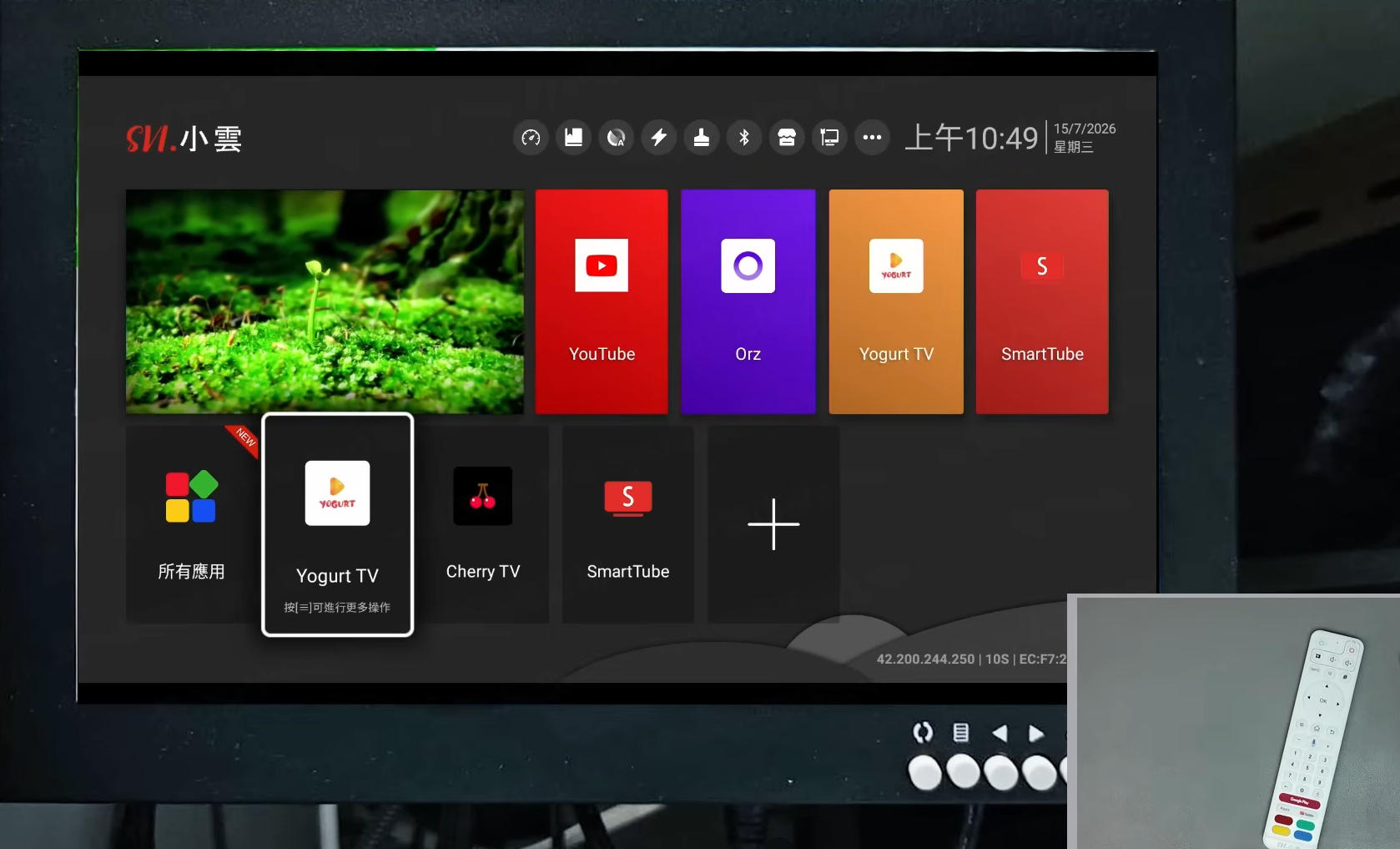
After installation, users can add shortcuts to the main launcher.
Frequently used applications can be pinned directly to the home screen, making them much easier to access without navigating through menus.
The launcher also allows users to reorganize icons whenever needed.
Boot Speed Test
One surprising highlight of the SviCloud 10S is its startup speed.
From power-on to reaching the home screen takes approximately:
24 seconds
The demonstration was recorded in real time without acceleration, showing that the system boots relatively quickly despite its entry-level hardware.
Programmable Remote Shortcuts
One of the most useful features of the remote control is its customizable shortcut buttons.
The four colored buttons can each be assigned to launch different applications.
For example:
Red → Favorite App
Blue → TV
Yellow → VOD
Green → User Choice
After programming, launching an application requires only a single button press.
The system also supports Auto Launch, allowing users to automatically open their preferred application every time the TV box starts.
For users who primarily watch live TV or movies, this greatly improves convenience.
Live TV Features
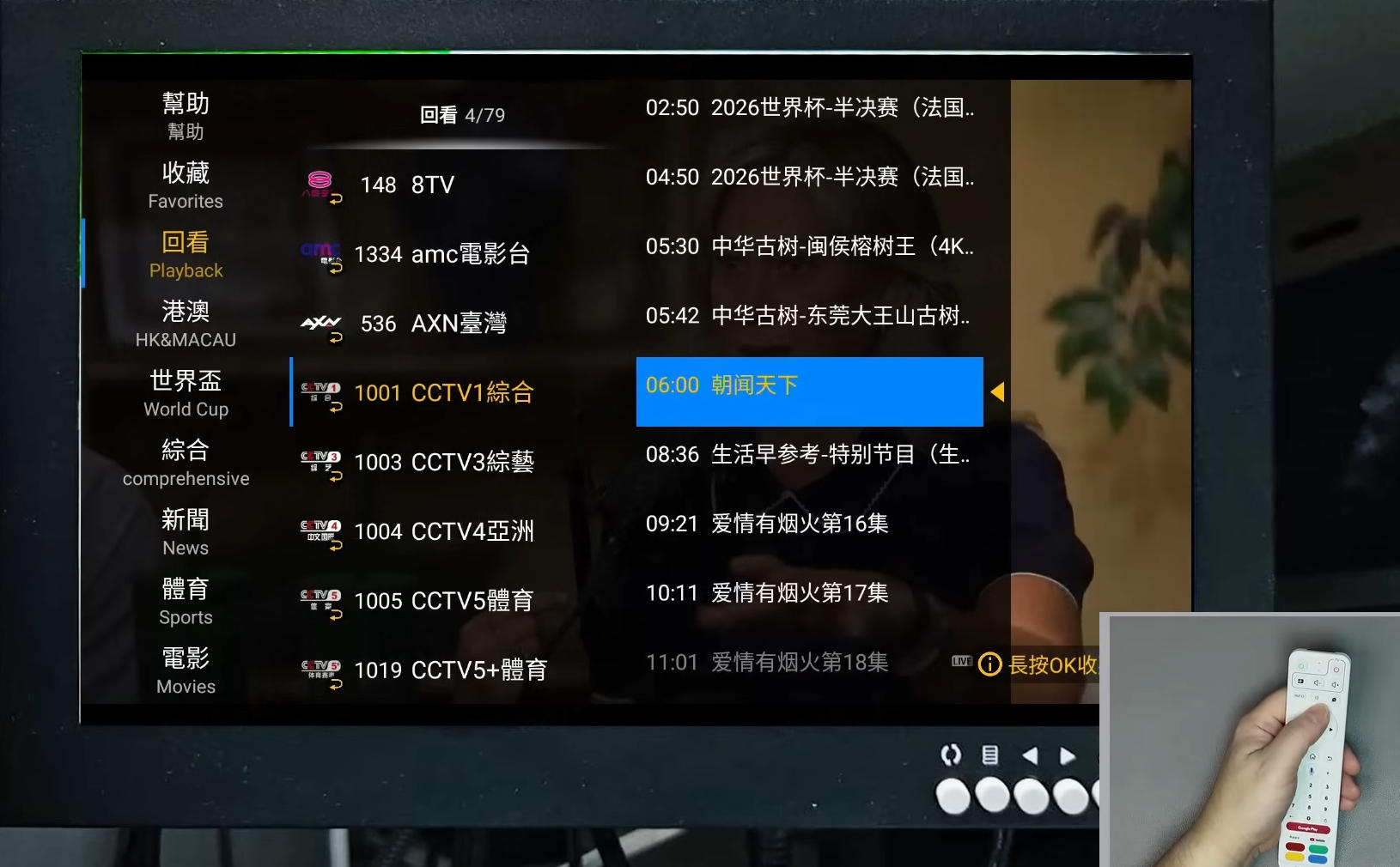
The YoTV application provides access to live television with multiple viewing options.
Features include:
Electronic Program Guide (EPG)
Seven-day replay
Live television
Channel categories
The available channels cover:
Hong Kong TV
Mainland China
Taiwan
Sports channels
General entertainment
Most popular channels are included.
7-Day Playback
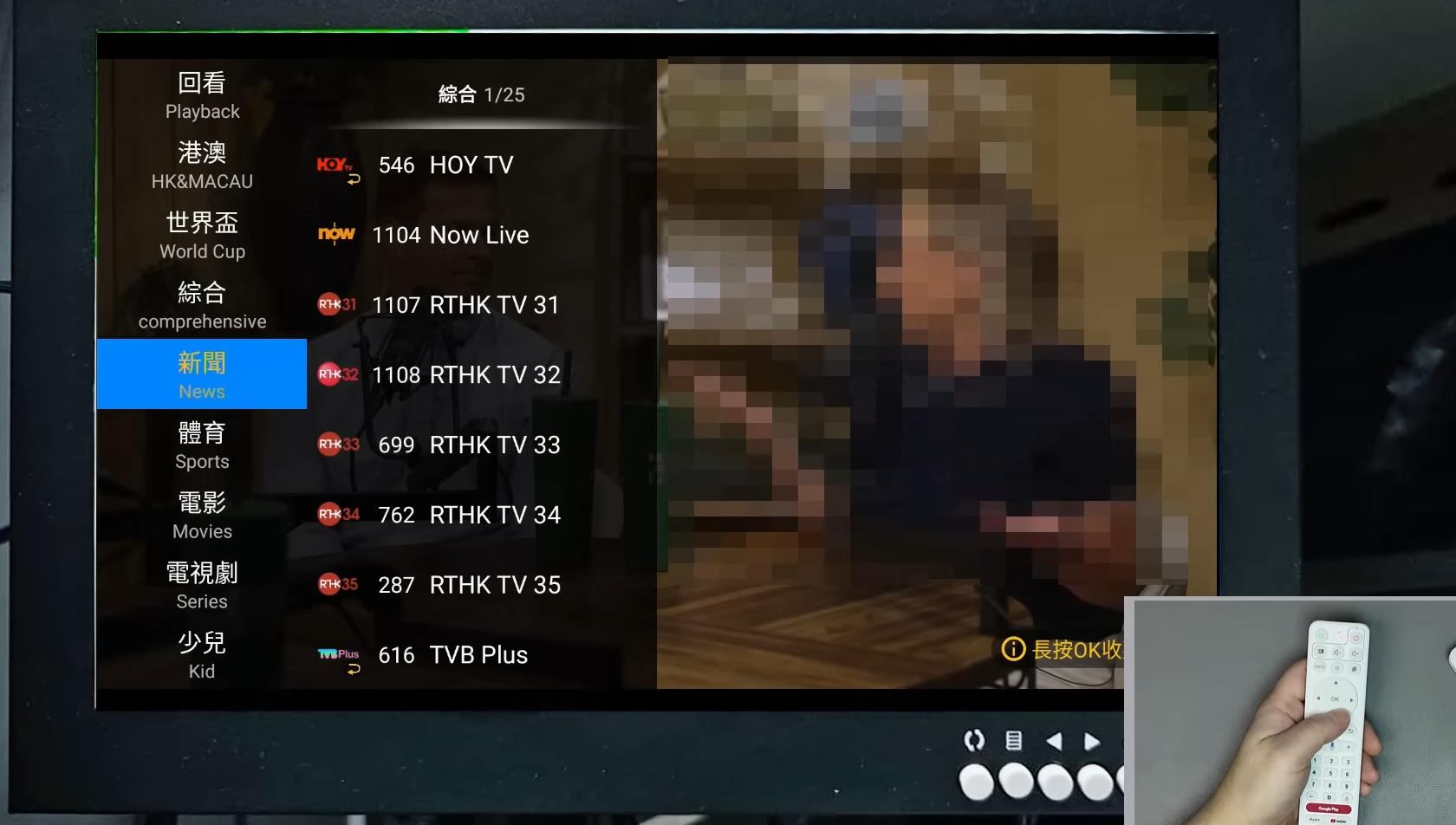
One of the standout features is the built-in playback system.
Users can replay previously aired programs in several different ways.
Method 1: EPG Replay
Open the program guide and select a previous broadcast.
Method 2: Timeline Replay
Press the Menu button while watching live TV.
Select:
Date
Time
Channel
Playback begins immediately.
Method 3: Timeline Scrubbing
While watching live TV, move left or right on the timeline to jump backward and replay earlier content.
This makes catching missed programs extremely convenient.
Voice Search
The Bluetooth remote includes built-in voice search.
Users simply:
Change the voice recognition language (for example, Cantonese).
Hold the microphone button.
Speak the movie or TV show's name.
Release the button.
Search results appear almost instantly.
The system also supports:
Cantonese
English
Chinese Pinyin input
This flexibility makes content searching much faster than typing with a remote.
Video Playback Options
During movie playback, pressing the Menu button opens additional playback controls.
Users can adjust:
Subtitle selection
Audio tracks
Playback speed
Screen aspect ratio
3D playback (when supported)
These controls make the player much more versatile than basic streaming applications.
Favorites and Viewing History
Saving content is simple.
Press the Heart icon while viewing a movie or TV show to add it to Favorites.
The home screen includes dedicated sections for:
Favorites
Watch History
Users can quickly resume previously watched content without searching again.
Hardware Performance
The SviCloud 10S is equipped with:
2GB RAM
32GB Internal Storage
Compared with newer flagship Android TV boxes offering 4GB RAM or more, the hardware is understandably more modest.
Performance is sufficient for:
Watching live TV
Streaming movies
General home entertainment
However, users expecting heavy multitasking, advanced gaming, or demanding applications may notice slower navigation compared with higher-end devices.
Pros
Easy installation process
Fast boot speed
Bluetooth voice remote
Four programmable shortcut buttons
Auto-launch favorite applications
Seven-day playback
Voice search support
Electronic Program Guide
Favorites and viewing history
User-friendly interface
Cons
Only 2GB RAM
32GB storage
Slower performance than newer premium Android TV boxes
Not ideal for heavy multitasking or gaming
Final Thoughts
The SviCloud 10S remains a practical streaming solution for users who primarily want reliable access to live television, replay functions, and on-demand entertainment.
Its straightforward setup process, customizable remote control, voice search, and seven-day playback make it particularly beginner-friendly. While the hardware is no longer cutting-edge, it still performs well for everyday streaming and television viewing.
If your main priority is watching TV rather than running demanding Android applications, the SviCloud 10S continues to offer a solid and easy-to-use experience.
Although the SviCloud 10S has been available for some time, many new users still have questions about installation, remote control functions, playback features, and daily usage. This guide summarizes everything covered in the video, from unboxing to performance testing.
What's Inside the Box?
The SviCloud 10S package includes everything needed to get started:
SviCloud 10S TV Box
Bluetooth Voice Remote Control
HDMI Cable
USB-C Power Adapter
User Manual
The TV box adopts a clean white design with a modern appearance. On the back, you'll find the HDMI output and USB-C power input. The overall hardware design is simple and user-friendly.
The included Bluetooth remote supports voice search and features four programmable shortcut buttons, making daily operation much more convenient.
First-Time Setup
Before connecting the TV box, install batteries into the remote control first. Since the remote pairs through Bluetooth during the initial setup, having batteries installed beforehand ensures a smooth pairing process.
After connecting the HDMI cable and power supply:
Power on the device.
Hold the Volume + and Volume - buttons simultaneously for several seconds.
Wait for the Bluetooth pairing prompt to appear.
Once paired, continue through the setup wizard.
The initial setup includes:
Selecting language
Choosing region
Configuring network settings
Completing basic system initialization
If using Wi-Fi, simply:
Open Network Settings
Select your home Wi-Fi
Enter the password
Wait for the connection
Once connected successfully, the system clock will synchronize automatically. If the displayed time is incorrect, it's usually an indication that the network connection hasn't been established properly.
Installing the Required Applications
Using the built-in browser, users can visit the provided installation website and download the necessary applications.
The video demonstrates installing three primary apps:
YoTV
Smart Player
Additional system application
Installation is straightforward:
Download
Install
Return to the home screen
No additional software is generally required for normal daily use.
Customizing the Home Screen
After installation, users can add shortcuts to the main launcher.
Frequently used applications can be pinned directly to the home screen, making them much easier to access without navigating through menus.
The launcher also allows users to reorganize icons whenever needed.
Boot Speed Test
One surprising highlight of the SviCloud 10S is its startup speed.
From power-on to reaching the home screen takes approximately:
24 seconds
The demonstration was recorded in real time without acceleration, showing that the system boots relatively quickly despite its entry-level hardware.
Programmable Remote Shortcuts
One of the most useful features of the remote control is its customizable shortcut buttons.
The four colored buttons can each be assigned to launch different applications.
For example:
Red → Favorite App
Blue → TV
Yellow → VOD
Green → User Choice
After programming, launching an application requires only a single button press.
The system also supports Auto Launch, allowing users to automatically open their preferred application every time the TV box starts.
For users who primarily watch live TV or movies, this greatly improves convenience.
Live TV Features
The YoTV application provides access to live television with multiple viewing options.
Features include:
Electronic Program Guide (EPG)
Seven-day replay
Live television
Channel categories
The available channels cover:
Hong Kong TV
Mainland China
Taiwan
Sports channels
General entertainment
Most popular channels are included.
7-Day Playback
One of the standout features is the built-in playback system.
Users can replay previously aired programs in several different ways.
Method 1: EPG Replay
Open the program guide and select a previous broadcast.
Method 2: Timeline Replay
Press the Menu button while watching live TV.
Select:
Date
Time
Channel
Playback begins immediately.
Method 3: Timeline Scrubbing
While watching live TV, move left or right on the timeline to jump backward and replay earlier content.
This makes catching missed programs extremely convenient.
Voice Search
The Bluetooth remote includes built-in voice search.
Users simply:
Change the voice recognition language (for example, Cantonese).
Hold the microphone button.
Speak the movie or TV show's name.
Release the button.
Search results appear almost instantly.
The system also supports:
Cantonese
English
Chinese Pinyin input
This flexibility makes content searching much faster than typing with a remote.
Video Playback Options
During movie playback, pressing the Menu button opens additional playback controls.
Users can adjust:
Subtitle selection
Audio tracks
Playback speed
Screen aspect ratio
3D playback (when supported)
These controls make the player much more versatile than basic streaming applications.
Favorites and Viewing History
Saving content is simple.
Press the Heart icon while viewing a movie or TV show to add it to Favorites.
The home screen includes dedicated sections for:
Favorites
Watch History
Users can quickly resume previously watched content without searching again.
Hardware Performance
The SviCloud 10S is equipped with:
2GB RAM
32GB Internal Storage
Compared with newer flagship Android TV boxes offering 4GB RAM or more, the hardware is understandably more modest.
Performance is sufficient for:
Watching live TV
Streaming movies
General home entertainment
However, users expecting heavy multitasking, advanced gaming, or demanding applications may notice slower navigation compared with higher-end devices.
Pros
Easy installation process
Fast boot speed
Bluetooth voice remote
Four programmable shortcut buttons
Auto-launch favorite applications
Seven-day playback
Voice search support
Electronic Program Guide
Favorites and viewing history
User-friendly interface
Cons
Only 2GB RAM
32GB storage
Slower performance than newer premium Android TV boxes
Not ideal for heavy multitasking or gaming
Final Thoughts
The SviCloud 10S remains a practical streaming solution for users who primarily want reliable access to live television, replay functions, and on-demand entertainment.
Its straightforward setup process, customizable remote control, voice search, and seven-day playback make it particularly beginner-friendly. While the hardware is no longer cutting-edge, it still performs well for everyday streaming and television viewing.
If your main priority is watching TV rather than running demanding Android applications, the SviCloud 10S continues to offer a solid and easy-to-use experience.


