 USD
 EUR
 GBP
 CAD
 AUD
 HKD
 JPY
 KRW
 SGD
 NZD
 THB
 TWD
 繁體中文
 日本語
 한국어
 English


How to Install the DIGIBox App on an iOS Device – Complete iPhone/iPad Download & Setup Guide
Great news for iPhone users! The DIGIBox App now officially supports iOS, allowing you to enjoy your favorite entertainment not only on Android smartphones but also on your iPhone.
With the new iOS version, you can access DIGIBox directly from your iPhone, making it easier to enjoy entertainment at home or while traveling.
In this guide, we'll walk you through how to download, install, and log in to the DIGIBox App on your iPhone/iPad, step by step.
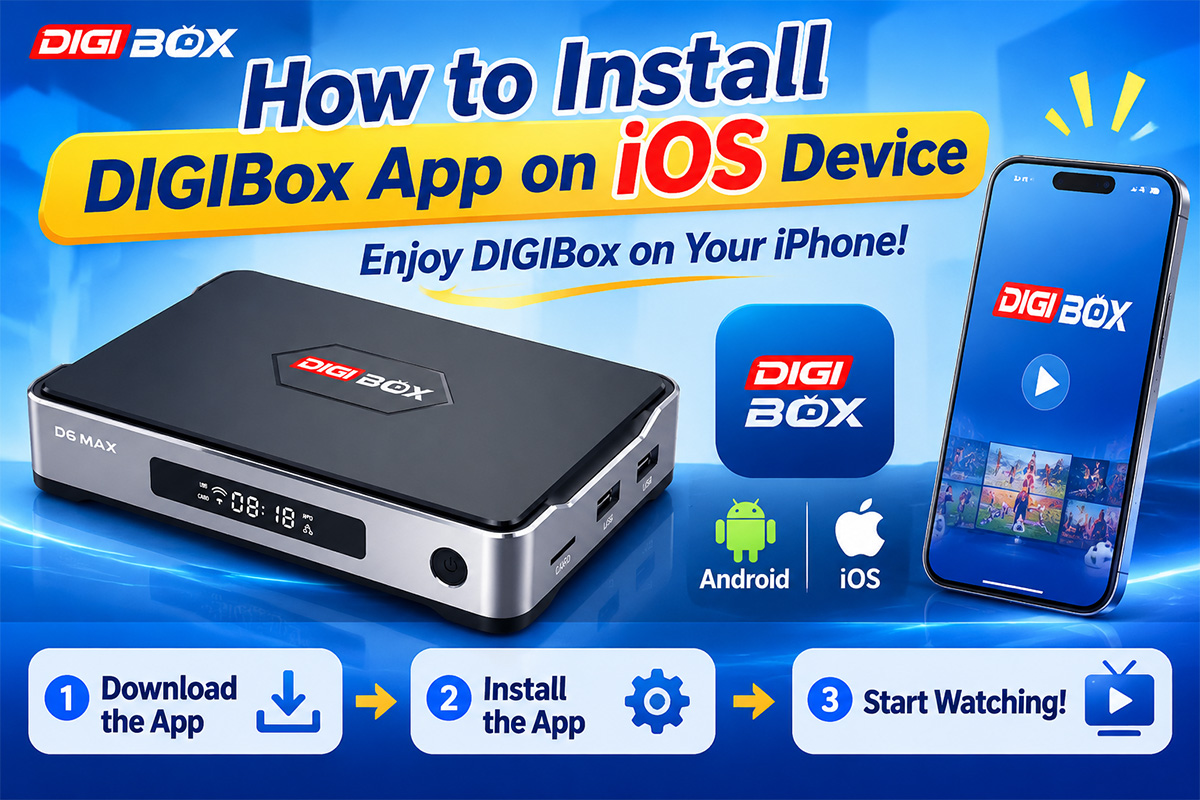
1. Introducing the DIGIBox iOS App
The DIGIBox App is now available for both Android and iOS devices.
Previously, smartphone access was mainly available to Android users. With the launch of the iOS version, iPhone users can now enjoy the convenience of mobile viewing too.
Key Features of the DIGIBox App:
-
Compatible with both Android and iOS smartphones
-
Watch your favorite programs directly on your iPhone
-
One account supports 1 Android smartphone and 1 iPhone simultaneously
-
Enjoy more flexible viewing at home or on the go
Whether you use an Android phone or an iPhone, DIGIBox gives you more ways to enjoy your entertainment.
2. How to Download the DIGIBox App on iPhone
Downloading the iOS version is simple. Follow the steps below to get started.
Step 1: Visit the Official Download Page
Open Safari or another browser on your iPhone and visit the official DIGIBox app download page:
Official Download Link:
Step 2: Access the iOS App Download Page
The website automatically detects your device and provides the appropriate app download option.
Follow the on-screen instructions to download the iOS version of the DIGIBox App.
Step 3: Install the App
Once the download is complete, follow the instructions displayed on your iPhone to finish installing the app.
If your iPhone displays additional confirmation or permission prompts during installation, follow the instructions on the screen.
3. How to Log In to the DIGIBox App
After installation, open the DIGIBox App on your iPhone.
You can log in using your existing DIGIBox account information:
-
Enter your account ID.
-
Enter your password.
-
Tap the login button to access the app.
If a QR code login option is displayed, you can also follow the in-app instructions to use this login method.
Once logged in successfully, you can start exploring the available channels and programs.
4. Enjoy DIGIBox Entertainment on Your iPhone
After logging in, browse the app menu and select the channels or programs you want to watch.
The mobile app makes it convenient to enjoy your favorite entertainment without always being in front of your TV.
For example:
-
At home: Enjoy DIGIBox through your TV box and television.
-
While traveling: Use your iPhone to access the app.
-
During your free time: Watch your preferred programs wherever you have a suitable internet connection.
It's a convenient way to enjoy entertainment across different situations.
5. Use Android and iPhone Simultaneously with One Account
One of the convenient features of the DIGIBox App is its support for both Android and iOS devices.
One account supports the following two devices simultaneously:
-
1 Android smartphone
-
1 iPhone
This means you can use the same account on an Android phone and an iPhone at the same time.
If you own both types of smartphones, you can enjoy greater flexibility without needing separate accounts for these two devices.
6. Want to Try the DIGIBox App for Free?
If you haven't used the DIGIBox App before, you can also explore our free trial option.
Both Android and iOS users can access the official download page directly from their smartphones.
Official App Download Page:
Please note that the QR code download method available inside the TV box menu is intended for customers who have already purchased a DIGIBox TV box.
If you are using the free trial, you do not need to scan the QR code inside a TV box. Simply visit the official download page above to download the app directly.
7. Frequently Asked Questions
Q1: Does the DIGIBox App support iPhone now?
Yes! The DIGIBox App now supports both Android and iOS smartphones.
Q2: Can I use the same account on Android and iPhone?
Yes. One account supports one Android smartphone and one iPhone simultaneously.
Q3: Where can I download the iOS version?
Visit the official download page using your iPhone:
Q4: Do free trial users need to scan the QR code inside a TV box?
No. The QR code download method inside the TV box is intended for customers who have already purchased a TV box. Free trial users can download the app directly from the official download page.
Conclusion
With the launch of the DIGIBox iOS App, iPhone users can now enjoy a more flexible mobile entertainment experience.
Downloading and installing the app is straightforward, and you can use the same account on one Android smartphone and one iPhone simultaneously.
Whether you are an Android user or an iPhone user, it's now easier to enjoy DIGIBox on your preferred device.


