 USD
USD EUR
EUR GBP
GBP CAD
CAD AUD
AUD HKD
HKD JPY
JPY KRW
KRW SGD
SGD NZD
NZD THB
THB TWD
TWD 繁體中文
繁體中文 日本語
日本語 한국어
한국어 English


By Android TV Box | 07 May 2026 | 0 Comments
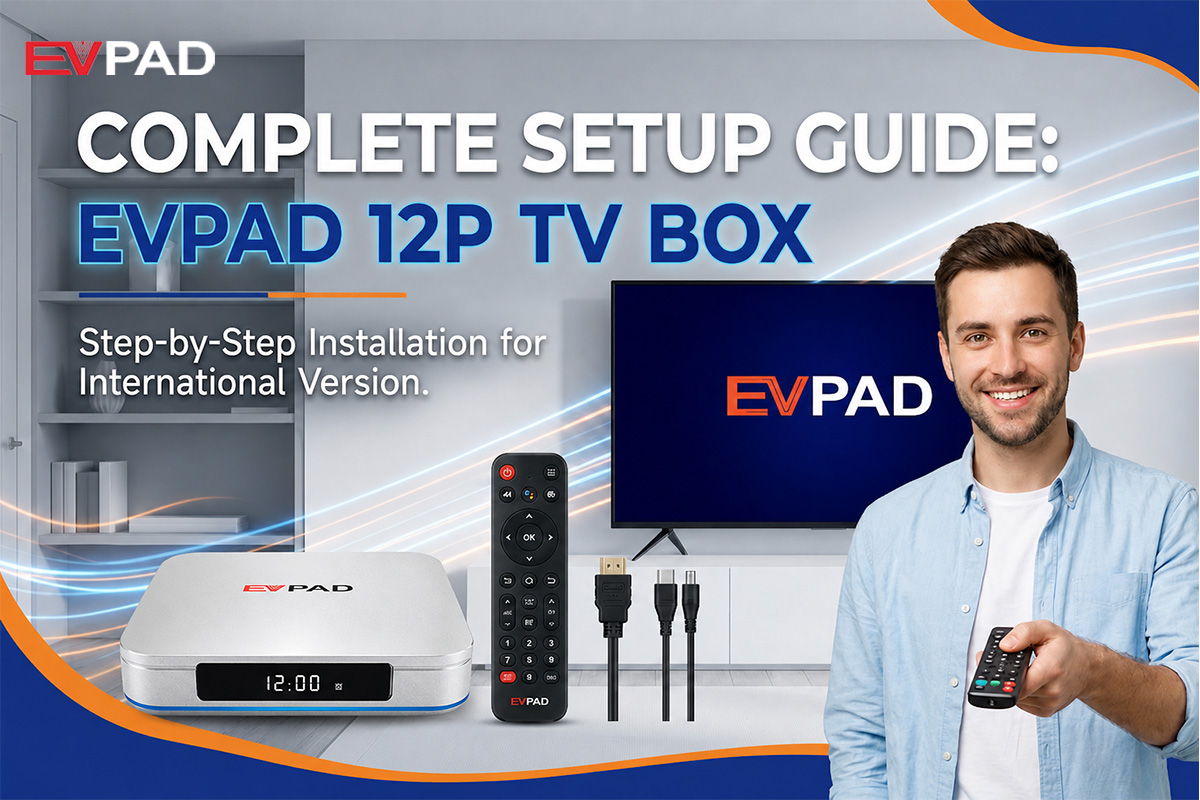
Mastering Your New Entertainment Hub: EVPAD 12P Installation & Initial Setup Guide
Welcome to the future of home entertainment! If you've just unboxed your brand-new EVPAD 12P (12th Generation), you're likely eager to dive into its world of endless content. To ensure you get the best experience from the start, we've put together this comprehensive guide based on the official installation walkthrough.
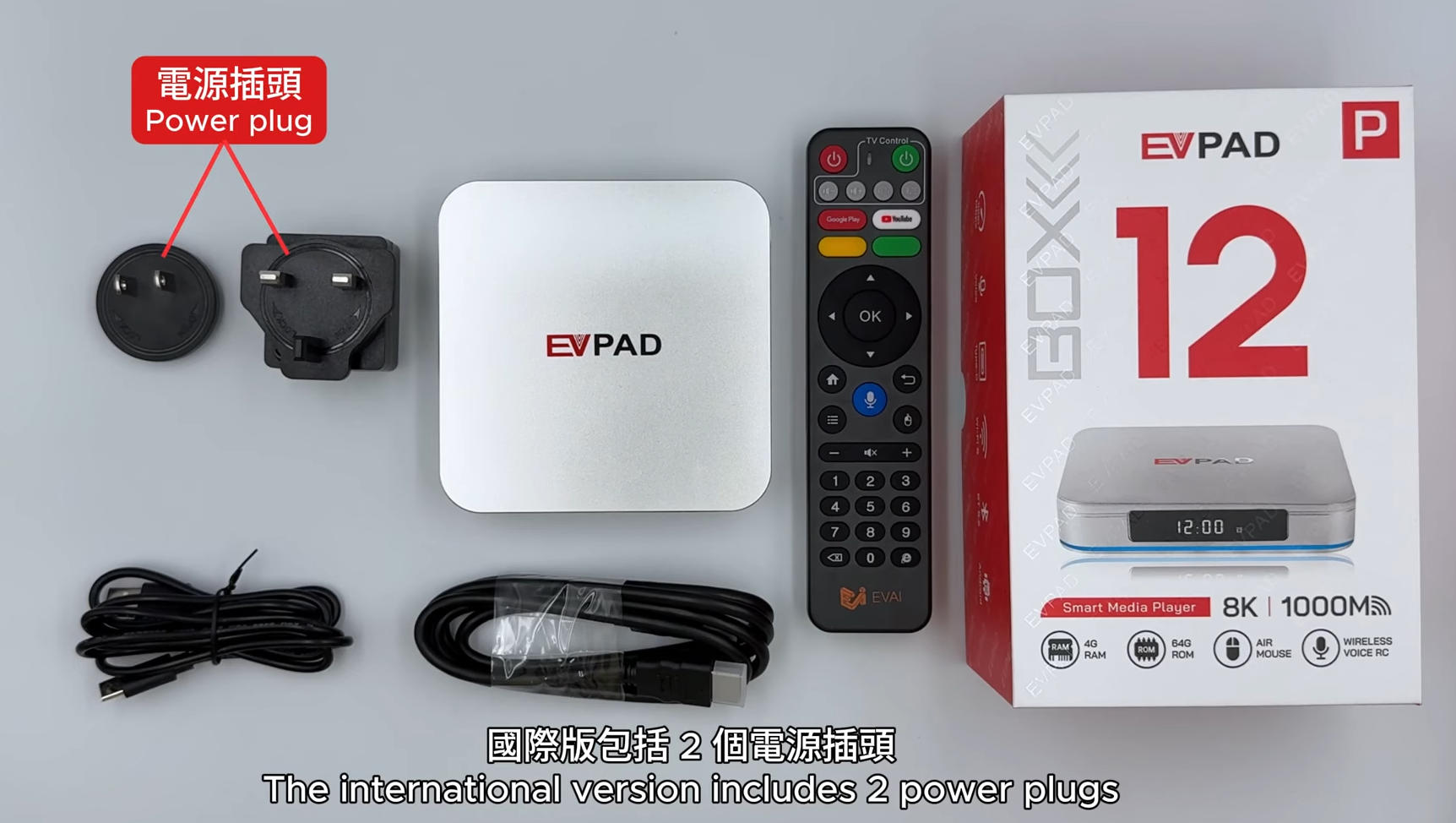
What's in the Box? (International Version)
Before we begin, let's verify you have all the essentials:
EVPAD 12P TV Box (The sleek silver heart of your setup)
Remote Control (Your magic wand for navigation)
HDMI Cable (For high-definition visual output)
USB Power Cable (Type-C to USB-A)
Power Adapters (The International Version includes 2 different plugs to suit various regions)
Step 1: Powering Up
The EVPAD 12P uses a modular power system.
Select the correct power plug for your outlet.
To switch plugs, simply press the release button on the adapter and rotate the plug clockwise to lock it in place.
Connect the USB-A end of the power cable to the adapter and the Type-C end to the DC port on the back of the EVPAD box.
Step 2: Connecting to Your TV
Plug one end of the HDMI cable into the HDMI port on your EVPAD.
Connect the other end to an available HDMI input on your television.
Once both power and HDMI are connected, the EVPAD 12P will automatically boot up.
Step 3: Initial System Settings
Once the EVPAD logo disappears, you'll be greeted by the setup wizard:
Language Selection: Choose your preferred language (e.g., English, Traditional Chinese, etc.) to proceed.
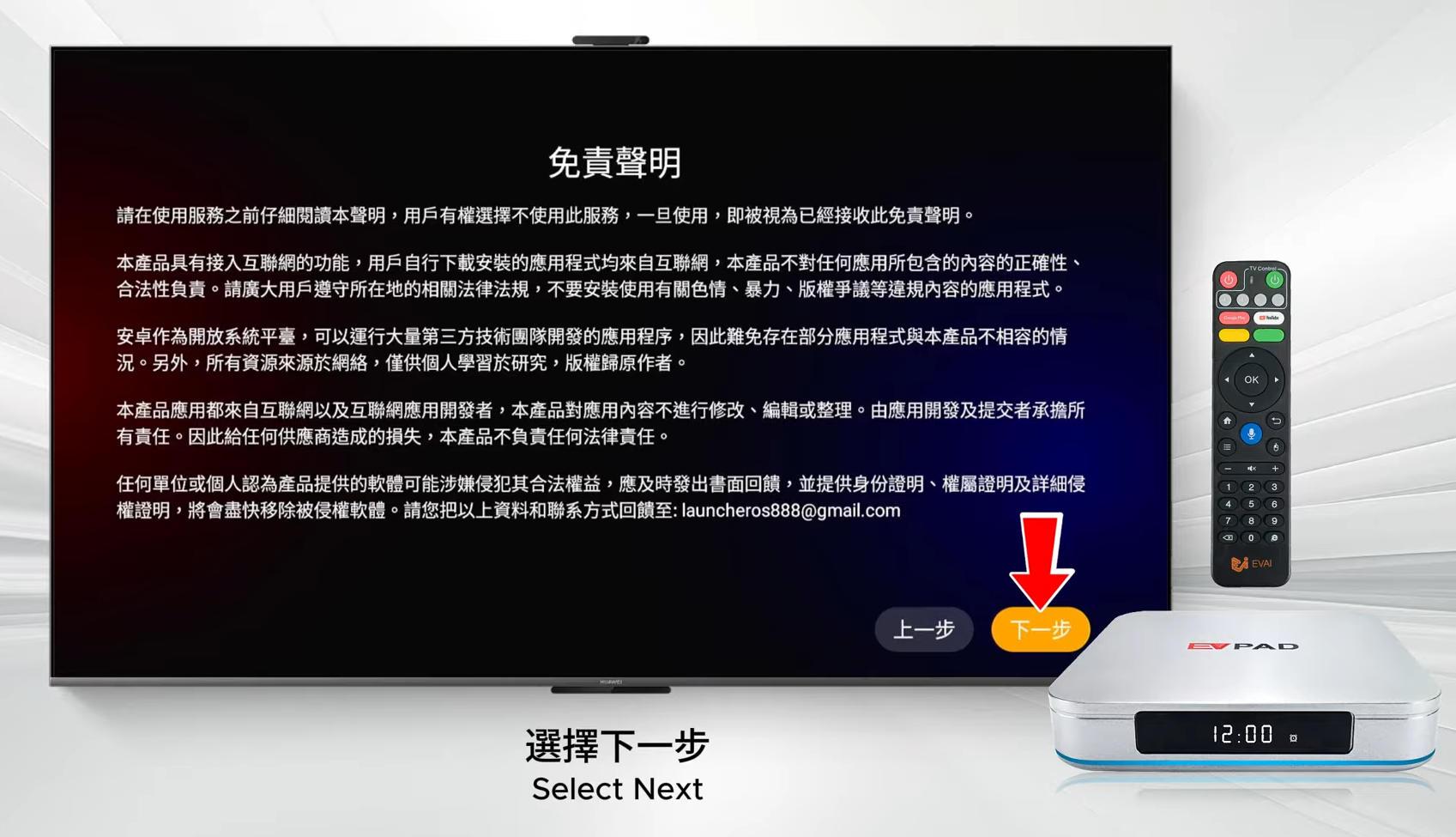
Disclaimer: Read through the terms and select "Next Step" to agree.
Step 4: Connecting to the Internet
A smart box is only as smart as its connection!
Select "Wireless Network" (Wi-Fi) from the network settings.
Find your home Wi-Fi name from the list.
Enter your password using the on-screen keyboard and click "Next".
Step 5: Pairing the Bluetooth Remote
To enable voice commands and ensure smooth navigation, you must pair your remote:
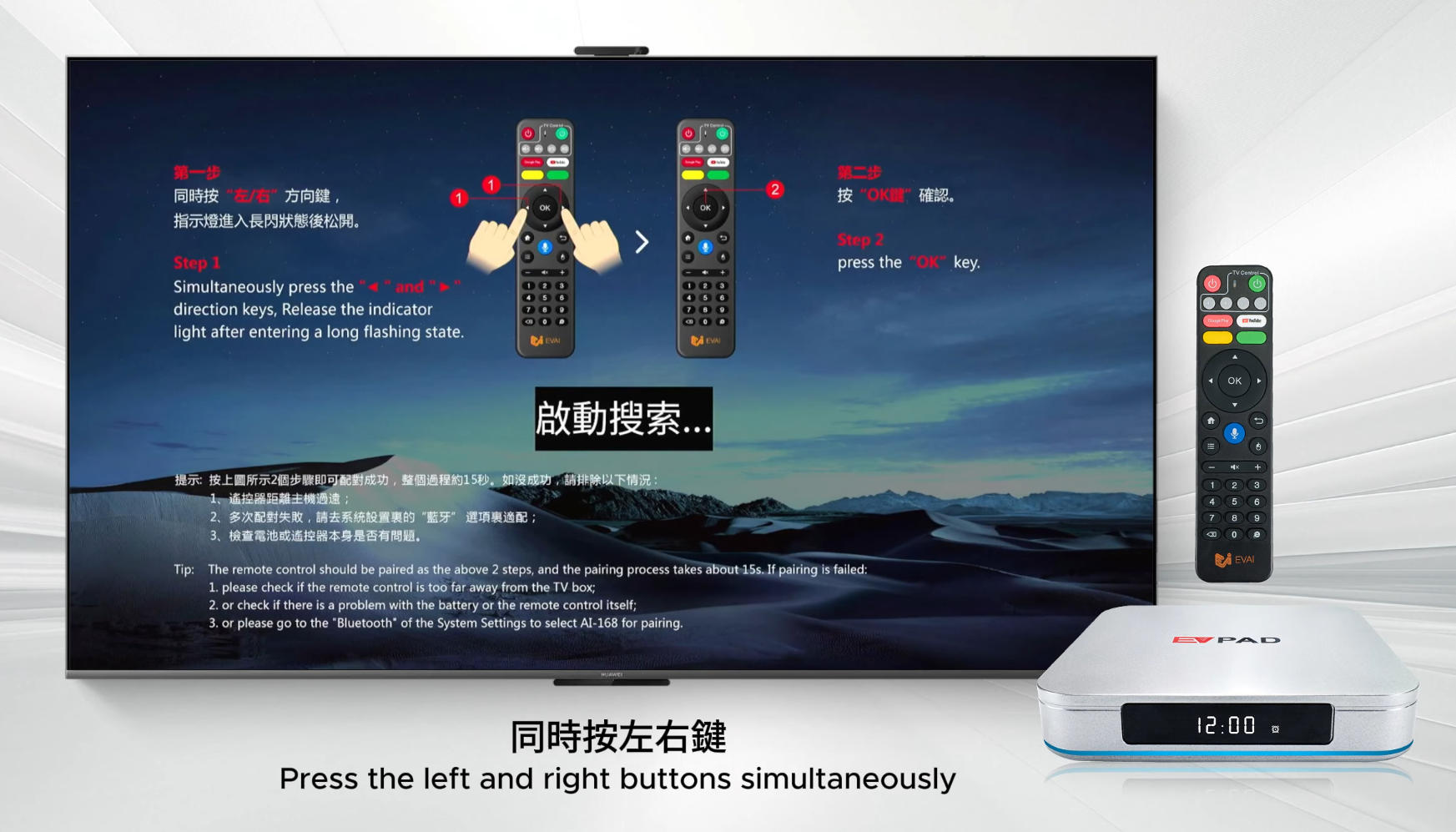
Follow the on-screen instructions: Press and hold the Left and Right direction buttons simultaneously on your remote.
The indicator light will flash, signifying it's in pairing mode.
Once the system detects the remote, press "OK" to finish pairing.
Step 6: Finalizing Setup
Once the pairing is complete, select "Finish". You will be taken to the main EVPAD dashboard—a vibrant interface ready for your exploration.
Pro Tip: For the best performance, ensure your TV box is placed in a well-ventilated area and your Wi-Fi signal is strong. Happy viewing!
What's in the Box? (International Version)
Before we begin, let's verify you have all the essentials:
EVPAD 12P TV Box (The sleek silver heart of your setup)
Remote Control (Your magic wand for navigation)
HDMI Cable (For high-definition visual output)
USB Power Cable (Type-C to USB-A)
Power Adapters (The International Version includes 2 different plugs to suit various regions)
Step 1: Powering Up
The EVPAD 12P uses a modular power system.
Select the correct power plug for your outlet.
To switch plugs, simply press the release button on the adapter and rotate the plug clockwise to lock it in place.
Connect the USB-A end of the power cable to the adapter and the Type-C end to the DC port on the back of the EVPAD box.
Step 2: Connecting to Your TV
Plug one end of the HDMI cable into the HDMI port on your EVPAD.
Connect the other end to an available HDMI input on your television.
Once both power and HDMI are connected, the EVPAD 12P will automatically boot up.
Step 3: Initial System Settings
Once the EVPAD logo disappears, you'll be greeted by the setup wizard:
Language Selection: Choose your preferred language (e.g., English, Traditional Chinese, etc.) to proceed.
Disclaimer: Read through the terms and select "Next Step" to agree.
Step 4: Connecting to the Internet
A smart box is only as smart as its connection!
Select "Wireless Network" (Wi-Fi) from the network settings.
Find your home Wi-Fi name from the list.
Enter your password using the on-screen keyboard and click "Next".
Step 5: Pairing the Bluetooth Remote
To enable voice commands and ensure smooth navigation, you must pair your remote:
Follow the on-screen instructions: Press and hold the Left and Right direction buttons simultaneously on your remote.
The indicator light will flash, signifying it's in pairing mode.
Once the system detects the remote, press "OK" to finish pairing.
Step 6: Finalizing Setup
Once the pairing is complete, select "Finish". You will be taken to the main EVPAD dashboard—a vibrant interface ready for your exploration.
Pro Tip: For the best performance, ensure your TV box is placed in a well-ventilated area and your Wi-Fi signal is strong. Happy viewing!


