 USD
 EUR
 GBP
 CAD
 AUD
 HKD
 JPY
 KRW
 SGD
 NZD
 THB
 TWD
 繁體中文
 日本語
 한국어
 English


By Android TV Box | 29 September 2026 | 0 Comments
SviCloud 15P HDMI-CEC Setup Guide: Fix Auto Power, HDMI Switching and Volume Problems
If you are using the SviCloud 15P and notice that your TV turns on automatically, the HDMI input switches by itself, or the SviCloud remote cannot control the TV volume, the HDMI-CEC setting may be the reason.
In this guide, we will show you how HDMI-CEC works on the SviCloud 15P, where to find the setting, and what to do if you experience compatibility problems with your TV or other HDMI devices.
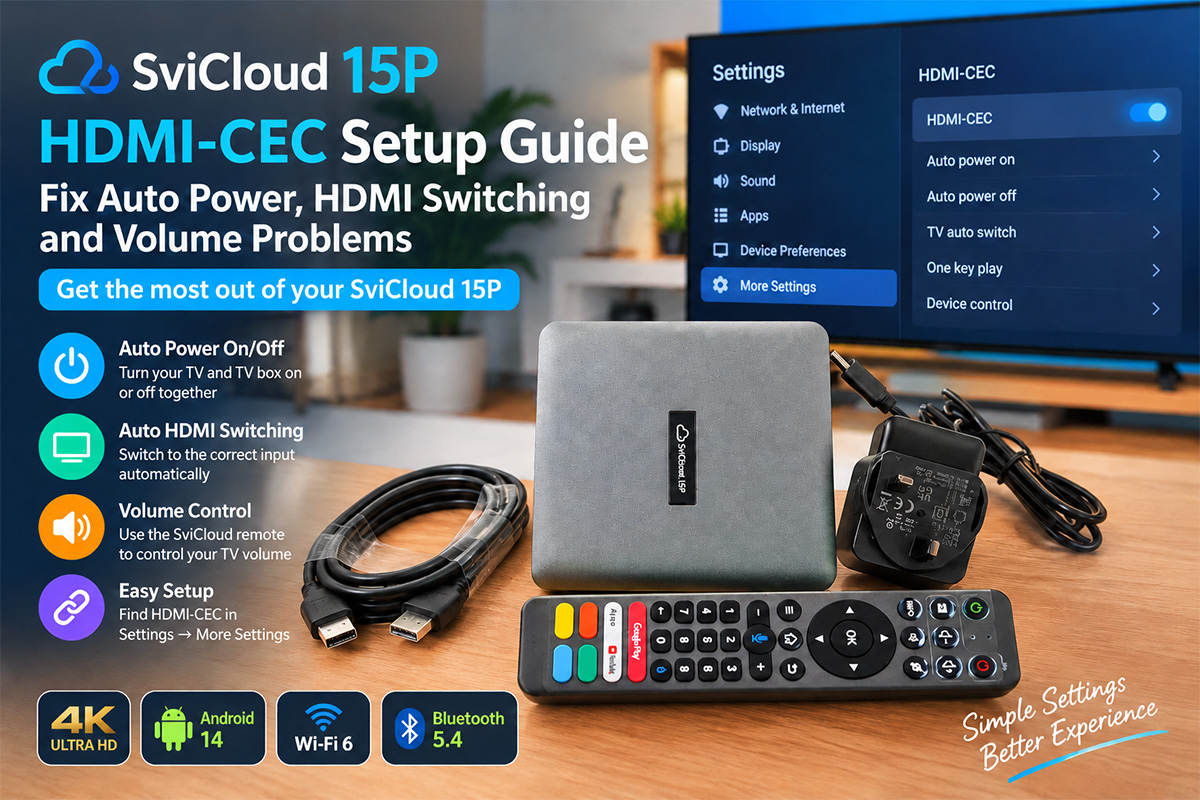
What Is HDMI-CEC on SviCloud 15P?
HDMI-CEC is a feature that allows the SviCloud 15P and your TV to communicate through the HDMI cable.
When HDMI-CEC is enabled, the SviCloud 15P can communicate with your TV to perform functions such as:
Turning the TV on or off
Automatically switching to the correct HDMI input
Controlling the TV volume with the SviCloud remote
Allowing connected HDMI devices to communicate with each other
For example, if your SviCloud 15P is connected to HDMI 2, turning on the SviCloud 15P may automatically turn on the TV and switch the TV to HDMI 2.
This can be very convenient when HDMI-CEC works correctly.
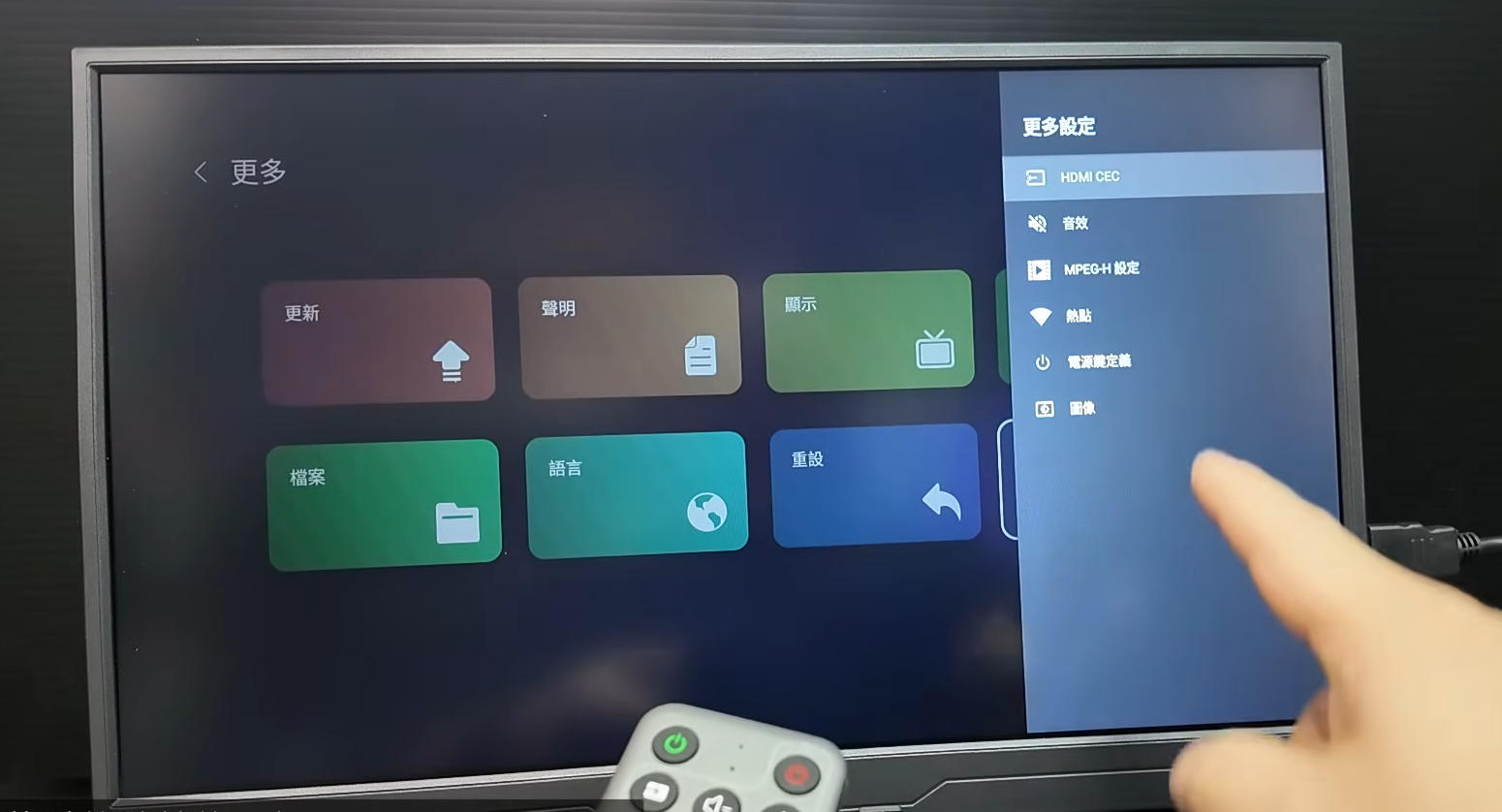
How to Find HDMI-CEC Settings on SviCloud 15P
To check the HDMI-CEC settings on your SviCloud 15P, follow these steps:
Settings → More Settings → HDMI-CEC
You will find the HDMI-CEC options in this section.
The HDMI-CEC function is normally enabled by default.
If your TV and SviCloud 15P are compatible, you can leave this function enabled and enjoy automatic power and HDMI input control.
SviCloud 15P Turns the TV On Automatically
One issue some users may encounter is that the TV or SviCloud 15P turns on automatically.
For example, you may have already switched off your TV and SviCloud 15P, but the device turns on again later.
This can happen when the TV or SviCloud 15P sends an HDMI-CEC command to the other device.
Another possibility is that the TV or TV box receives an OTA system update or performs another system-related operation that wakes the device.
Because HDMI-CEC allows connected devices to communicate, the other device may respond automatically.
If your SviCloud 15P and TV repeatedly turn on by themselves, try disabling HDMI-CEC and test the system again.
SviCloud 15P Automatically Switches the TV Input
Many users connect multiple HDMI devices to their TV.
For example:
HDMI 1 — SviCloud 15P
HDMI 2 — Game console
HDMI 3 — Blu-ray player
HDMI 4 — Other device
When HDMI-CEC is enabled, turning on one of these devices may cause the TV to automatically switch to its HDMI input.
For example, you may want to watch content on your SviCloud 15P, but turning on another HDMI device causes the TV to switch away from the SviCloud 15P.
This is not necessarily a problem with the SviCloud 15P.
It can be caused by the HDMI-CEC communication between multiple connected devices.
If you prefer to select the HDMI input manually, you can try disabling HDMI-CEC.
SviCloud 15P Remote Cannot Control TV Volume
Another common issue is volume control.
When HDMI-CEC is working correctly, the SviCloud 15P remote may be able to control the volume of your TV.
However, if HDMI-CEC compatibility between the SviCloud 15P and your TV is not working properly, pressing the volume buttons may produce no response.
You may find that:
Volume + does not increase the volume
Volume − does not decrease the volume
This does not necessarily mean that your SviCloud remote is defective.
The issue may be caused by the communication between the TV and SviCloud 15P.
Different TV brands and models can implement HDMI-CEC differently, so compatibility may vary.
HDMI-CEC Compatibility Depends on Your TV
It is important to understand that HDMI-CEC is not always identical across different brands and devices.
A SviCloud 15P may work normally with one TV but behave differently when connected to another TV.
For example, one TV may correctly respond to the SviCloud 15P's HDMI-CEC commands, while another TV may experience:
Automatic power-on
Automatic HDMI switching
Volume control problems
Unexpected device interaction
Therefore, these symptoms do not necessarily indicate that the SviCloud 15P is faulty.
They may simply be caused by HDMI-CEC compatibility.
Using SviCloud 15P with a Soundbar or Hi-Fi System
If your TV is connected to a soundbar or Hi-Fi system, the HDMI connection should also be configured correctly.
Most modern TVs have an HDMI port labeled:
HDMI ARC or HDMI eARC
A typical connection can look like this:
SviCloud 15P → TV HDMI 1
Soundbar / Hi-Fi → TV HDMI ARC/eARC
The SviCloud 15P sends the video signal to the TV, while the TV can send audio to the connected sound system through ARC/eARC.
Make sure your soundbar or Hi-Fi system is connected to the correct ARC/eARC port on the TV.
HDMI-CEC and HDMI ARC/eARC Are Different
Although HDMI-CEC and HDMI ARC/eARC can work together, they have different purposes.
HDMI-CEC
HDMI-CEC is primarily used for device control.
It can help with:
Power control
HDMI input switching
Remote control
Volume control
HDMI ARC/eARC
ARC and eARC are primarily used for audio transmission between the TV and a compatible sound system.
For example:
SviCloud 15P → TV → Soundbar
The SviCloud 15P provides the content, the TV displays the video, and the TV can send the audio to the soundbar through ARC/eARC.
How to Fix HDMI-CEC Problems on SviCloud 15P
If your SviCloud 15P is experiencing unusual HDMI behavior, try the following steps.
Step 1: Open Settings
On your SviCloud 15P, open:
Settings → More Settings
Step 2: Find HDMI-CEC
Look for the:
HDMI-CEC
option.
Step 3: Disable HDMI-CEC
If you are experiencing automatic power-on, unexpected HDMI switching, or volume-control problems, turn HDMI-CEC off.
Step 4: Test the SviCloud 15P
Use the SviCloud 15P normally and check whether the problem has disappeared.
If the issue disappears after disabling HDMI-CEC, the problem was likely related to HDMI-CEC compatibility.
When Should You Keep HDMI-CEC Enabled?
If your SviCloud 15P works correctly with your TV, there is no need to disable HDMI-CEC.
Keeping it enabled can make everyday use more convenient.
For example, you may be able to turn on the SviCloud 15P and have the TV automatically:
Turn on
Switch to the correct HDMI input
Display the SviCloud 15P interface
You may also be able to control the TV volume using the SviCloud remote.
In this situation, HDMI-CEC can save you from using multiple remotes.
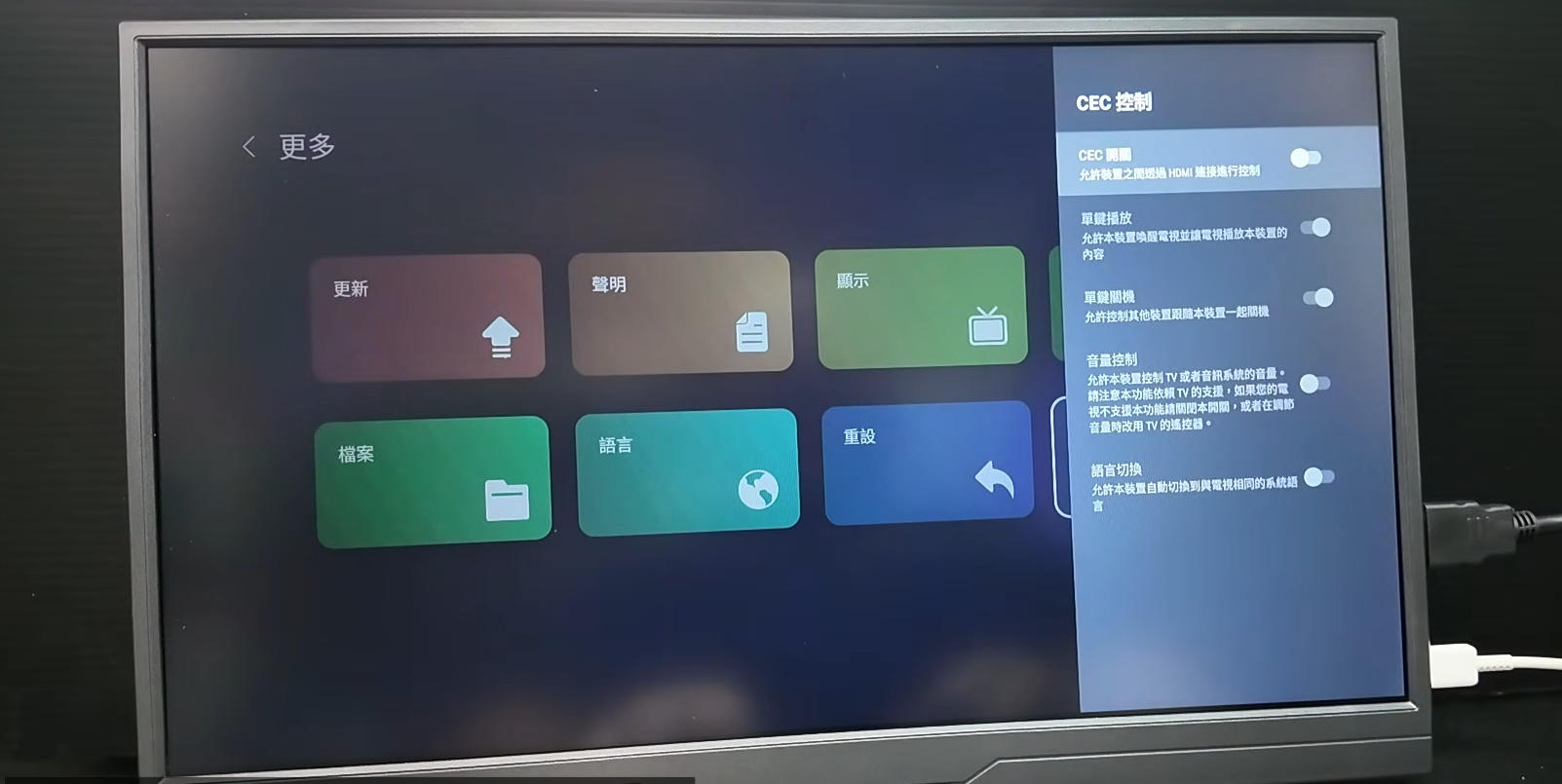
When Should You Disable HDMI-CEC?
You may want to disable HDMI-CEC if you experience repeated problems such as:
The TV turns on by itself
The SviCloud 15P turns on unexpectedly
The TV keeps switching HDMI inputs
The SviCloud remote cannot control the TV volume
A game console interferes with the SviCloud 15P
Multiple HDMI devices turn on together
The TV and SviCloud 15P behave unpredictably
If you do not need automatic device control, disabling HDMI-CEC can make the setup more predictable.
SviCloud 15P HDMI-CEC Troubleshooting Checklist
If you are having HDMI-related problems with your SviCloud 15P, check the following:
1. Check the HDMI cable
Make sure the cable is securely connected to both the SviCloud 15P and TV.
2. Check the HDMI input
Make sure the SviCloud 15P is connected to the HDMI input you intend to use.
3. Check HDMI-CEC
Go to:
Settings → More Settings → HDMI-CEC
4. Disable HDMI-CEC temporarily
If you experience automatic power or volume problems, turn the function off and test again.
5. Check other HDMI devices
If you have a game console, soundbar, Blu-ray player, or another HDMI device connected, temporarily disconnect it and test the SviCloud 15P again.
6. Check ARC/eARC
If you use a soundbar or Hi-Fi system, make sure it is connected to the TV's HDMI ARC/eARC port.
Final Thoughts
HDMI-CEC is a useful feature on the SviCloud 15P when your TV and other HDMI devices are compatible.
It can make everyday operation easier by allowing the SviCloud 15P to communicate with your TV, automatically switch HDMI inputs, and control certain TV functions such as volume.
However, HDMI-CEC compatibility can vary between different TV brands and models.
If your SviCloud 15P causes unexpected HDMI switching, automatic power-on, or volume-control problems, don't immediately assume that the SviCloud 15P or remote control is defective.
First, check the HDMI-CEC settings.
Go to:
Settings → More Settings → HDMI-CEC
If necessary, turn HDMI-CEC off and test the device again.
For users who do not need automatic HDMI control, disabling this feature can help reduce unexpected interactions between the SviCloud 15P, TV, game consoles, soundbars, and other HDMI devices.
In this guide, we will show you how HDMI-CEC works on the SviCloud 15P, where to find the setting, and what to do if you experience compatibility problems with your TV or other HDMI devices.
What Is HDMI-CEC on SviCloud 15P?
HDMI-CEC is a feature that allows the SviCloud 15P and your TV to communicate through the HDMI cable.
When HDMI-CEC is enabled, the SviCloud 15P can communicate with your TV to perform functions such as:
Turning the TV on or off
Automatically switching to the correct HDMI input
Controlling the TV volume with the SviCloud remote
Allowing connected HDMI devices to communicate with each other
For example, if your SviCloud 15P is connected to HDMI 2, turning on the SviCloud 15P may automatically turn on the TV and switch the TV to HDMI 2.
This can be very convenient when HDMI-CEC works correctly.
How to Find HDMI-CEC Settings on SviCloud 15P
To check the HDMI-CEC settings on your SviCloud 15P, follow these steps:
Settings → More Settings → HDMI-CEC
You will find the HDMI-CEC options in this section.
The HDMI-CEC function is normally enabled by default.
If your TV and SviCloud 15P are compatible, you can leave this function enabled and enjoy automatic power and HDMI input control.
SviCloud 15P Turns the TV On Automatically
One issue some users may encounter is that the TV or SviCloud 15P turns on automatically.
For example, you may have already switched off your TV and SviCloud 15P, but the device turns on again later.
This can happen when the TV or SviCloud 15P sends an HDMI-CEC command to the other device.
Another possibility is that the TV or TV box receives an OTA system update or performs another system-related operation that wakes the device.
Because HDMI-CEC allows connected devices to communicate, the other device may respond automatically.
If your SviCloud 15P and TV repeatedly turn on by themselves, try disabling HDMI-CEC and test the system again.
SviCloud 15P Automatically Switches the TV Input
Many users connect multiple HDMI devices to their TV.
For example:
HDMI 1 — SviCloud 15P
HDMI 2 — Game console
HDMI 3 — Blu-ray player
HDMI 4 — Other device
When HDMI-CEC is enabled, turning on one of these devices may cause the TV to automatically switch to its HDMI input.
For example, you may want to watch content on your SviCloud 15P, but turning on another HDMI device causes the TV to switch away from the SviCloud 15P.
This is not necessarily a problem with the SviCloud 15P.
It can be caused by the HDMI-CEC communication between multiple connected devices.
If you prefer to select the HDMI input manually, you can try disabling HDMI-CEC.
SviCloud 15P Remote Cannot Control TV Volume
Another common issue is volume control.
When HDMI-CEC is working correctly, the SviCloud 15P remote may be able to control the volume of your TV.
However, if HDMI-CEC compatibility between the SviCloud 15P and your TV is not working properly, pressing the volume buttons may produce no response.
You may find that:
Volume + does not increase the volume
Volume − does not decrease the volume
This does not necessarily mean that your SviCloud remote is defective.
The issue may be caused by the communication between the TV and SviCloud 15P.
Different TV brands and models can implement HDMI-CEC differently, so compatibility may vary.
HDMI-CEC Compatibility Depends on Your TV
It is important to understand that HDMI-CEC is not always identical across different brands and devices.
A SviCloud 15P may work normally with one TV but behave differently when connected to another TV.
For example, one TV may correctly respond to the SviCloud 15P's HDMI-CEC commands, while another TV may experience:
Automatic power-on
Automatic HDMI switching
Volume control problems
Unexpected device interaction
Therefore, these symptoms do not necessarily indicate that the SviCloud 15P is faulty.
They may simply be caused by HDMI-CEC compatibility.
Using SviCloud 15P with a Soundbar or Hi-Fi System
If your TV is connected to a soundbar or Hi-Fi system, the HDMI connection should also be configured correctly.
Most modern TVs have an HDMI port labeled:
HDMI ARC or HDMI eARC
A typical connection can look like this:
SviCloud 15P → TV HDMI 1
Soundbar / Hi-Fi → TV HDMI ARC/eARC
The SviCloud 15P sends the video signal to the TV, while the TV can send audio to the connected sound system through ARC/eARC.
Make sure your soundbar or Hi-Fi system is connected to the correct ARC/eARC port on the TV.
HDMI-CEC and HDMI ARC/eARC Are Different
Although HDMI-CEC and HDMI ARC/eARC can work together, they have different purposes.
HDMI-CEC
HDMI-CEC is primarily used for device control.
It can help with:
Power control
HDMI input switching
Remote control
Volume control
HDMI ARC/eARC
ARC and eARC are primarily used for audio transmission between the TV and a compatible sound system.
For example:
SviCloud 15P → TV → Soundbar
The SviCloud 15P provides the content, the TV displays the video, and the TV can send the audio to the soundbar through ARC/eARC.
How to Fix HDMI-CEC Problems on SviCloud 15P
If your SviCloud 15P is experiencing unusual HDMI behavior, try the following steps.
Step 1: Open Settings
On your SviCloud 15P, open:
Settings → More Settings
Step 2: Find HDMI-CEC
Look for the:
HDMI-CEC
option.
Step 3: Disable HDMI-CEC
If you are experiencing automatic power-on, unexpected HDMI switching, or volume-control problems, turn HDMI-CEC off.
Step 4: Test the SviCloud 15P
Use the SviCloud 15P normally and check whether the problem has disappeared.
If the issue disappears after disabling HDMI-CEC, the problem was likely related to HDMI-CEC compatibility.
When Should You Keep HDMI-CEC Enabled?
If your SviCloud 15P works correctly with your TV, there is no need to disable HDMI-CEC.
Keeping it enabled can make everyday use more convenient.
For example, you may be able to turn on the SviCloud 15P and have the TV automatically:
Turn on
Switch to the correct HDMI input
Display the SviCloud 15P interface
You may also be able to control the TV volume using the SviCloud remote.
In this situation, HDMI-CEC can save you from using multiple remotes.
When Should You Disable HDMI-CEC?
You may want to disable HDMI-CEC if you experience repeated problems such as:
The TV turns on by itself
The SviCloud 15P turns on unexpectedly
The TV keeps switching HDMI inputs
The SviCloud remote cannot control the TV volume
A game console interferes with the SviCloud 15P
Multiple HDMI devices turn on together
The TV and SviCloud 15P behave unpredictably
If you do not need automatic device control, disabling HDMI-CEC can make the setup more predictable.
SviCloud 15P HDMI-CEC Troubleshooting Checklist
If you are having HDMI-related problems with your SviCloud 15P, check the following:
1. Check the HDMI cable
Make sure the cable is securely connected to both the SviCloud 15P and TV.
2. Check the HDMI input
Make sure the SviCloud 15P is connected to the HDMI input you intend to use.
3. Check HDMI-CEC
Go to:
Settings → More Settings → HDMI-CEC
4. Disable HDMI-CEC temporarily
If you experience automatic power or volume problems, turn the function off and test again.
5. Check other HDMI devices
If you have a game console, soundbar, Blu-ray player, or another HDMI device connected, temporarily disconnect it and test the SviCloud 15P again.
6. Check ARC/eARC
If you use a soundbar or Hi-Fi system, make sure it is connected to the TV's HDMI ARC/eARC port.
Final Thoughts
HDMI-CEC is a useful feature on the SviCloud 15P when your TV and other HDMI devices are compatible.
It can make everyday operation easier by allowing the SviCloud 15P to communicate with your TV, automatically switch HDMI inputs, and control certain TV functions such as volume.
However, HDMI-CEC compatibility can vary between different TV brands and models.
If your SviCloud 15P causes unexpected HDMI switching, automatic power-on, or volume-control problems, don't immediately assume that the SviCloud 15P or remote control is defective.
First, check the HDMI-CEC settings.
Go to:
Settings → More Settings → HDMI-CEC
If necessary, turn HDMI-CEC off and test the device again.
For users who do not need automatic HDMI control, disabling this feature can help reduce unexpected interactions between the SviCloud 15P, TV, game consoles, soundbars, and other HDMI devices.


